# Page Builder
**Page Builder** - is a visual constructor for the site's main page designed to manage content blocks without the need to edit code or involve developers.
The section allows site administrators to:
* manage the structure of the site's main page, gaining full control over the layout;
* change the order of blocks;
* customize the appearance of blocks, speeding up the implementation of changes without involving developers;
* choose different display options for the same block.
All changes are made through the admin panel interface and are applied directly to the site's main page.
### Visual editing (WYSIWYG)
Page Builder operates on the principle **"what you see is what you get" (WYSIWYG)**.
This means:
* the display of blocks is as close as possible to the real appearance of the site;
* no need to edit code;
* the ability to manage the page without technical knowledge.
The administrator immediately sees how the page will look after the changes have been made.
### 2. Purpose of the section
Section **Page Builder** is created to:
* simplify management of the main page;
* give administrators full control over the visual part of the site;
* speed up the launch and testing of new design options;
* minimize dependence on technical specialists.
### 3. Page Builder interface structure
The Page Builder interface consists of the following key elements:
#### 3.1 Page canvas
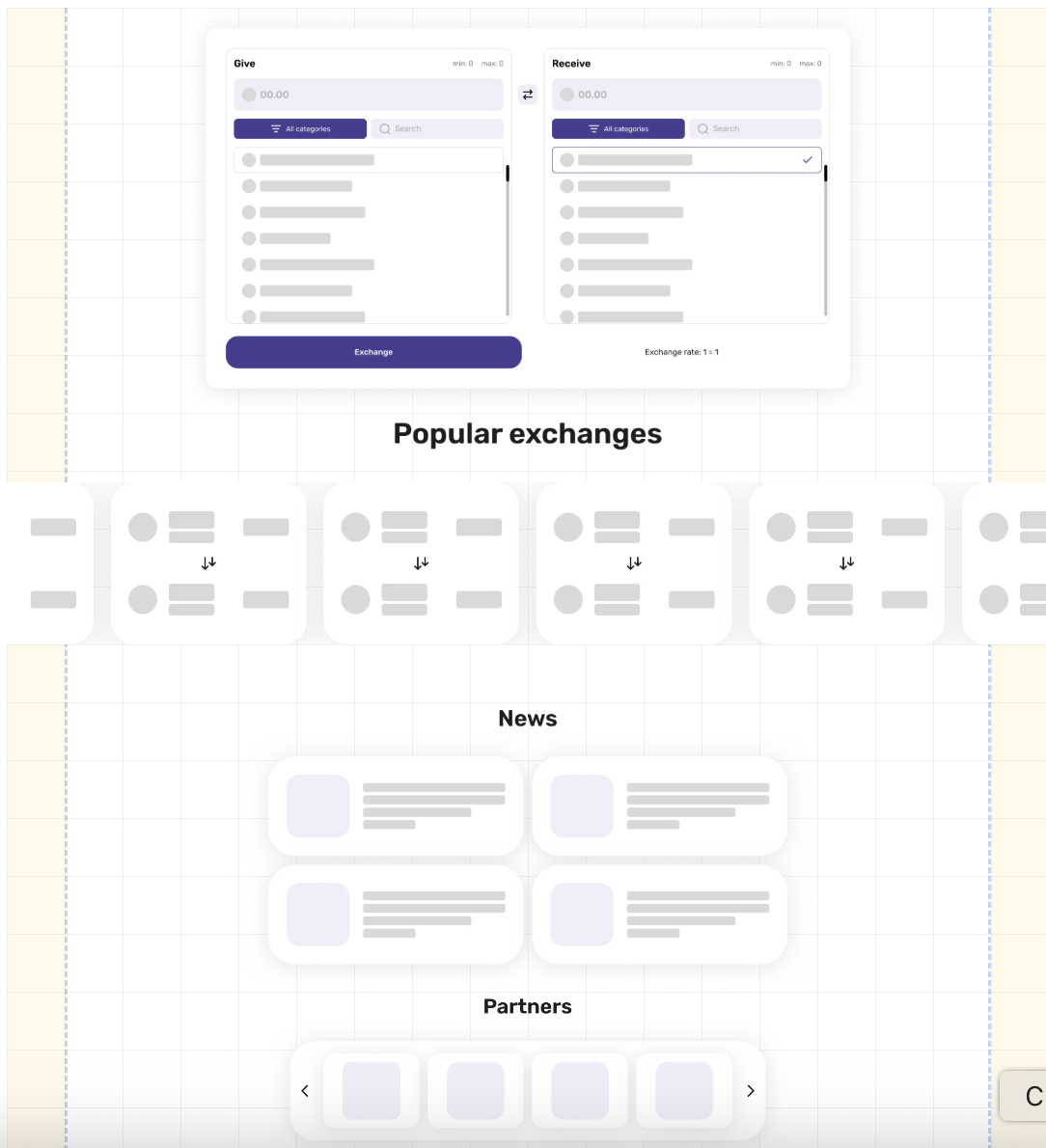
The canvas is a visual representation of the site's main page divided into separate blocks.\
Each block corresponds to a real element that is displayed on the site for users.
The canvas displays:
* the order of blocks from top to bottom;
* the current type and appearance of each block;
* available block control elements.
#### 3.2 Page blocks
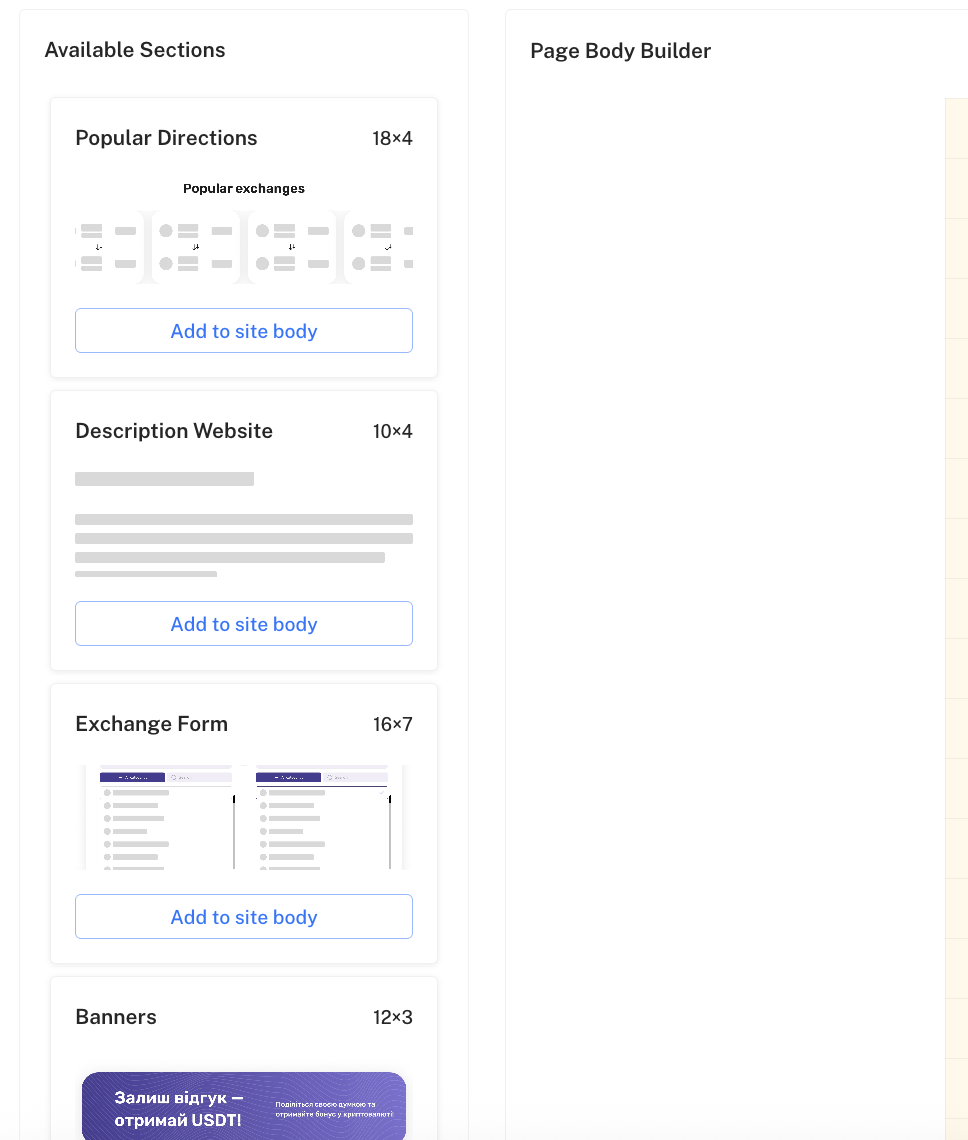
**Block** - is a separate functional and informational element of the main page; all blocks available for further use can be located here, for example:
* Site description;
* Popular exchange directions block;
* Exchange form;
* Partners;
* News;
* Partners block;
* Banners.
Each block:
* can be moved as a separate section on the canvas;
* has its own settings both in the section and separate settings after they are applied on the canvas;
* can be changed independently of other blocks.
### 4. Managing block placement
#### 4.1 Changing the order of blocks
Page Builder allows you to manage the order of block display on the main page.
The administrator can:
* change the sequence of blocks;
* arrange priority blocks higher or lower;
* change the appearance of a specific block to one of the adapted variants.
Changing the order of blocks directly affects how users see the site's main page.
Blocks are displayed on the site strictly in the order in which they are placed on the Page Builder canvas.\
All order changes are applied after saving and are immediately reflected on the client side of the site.
### 5. Configuring the appearance of blocks
#### 5.1 Settings icon (gear)
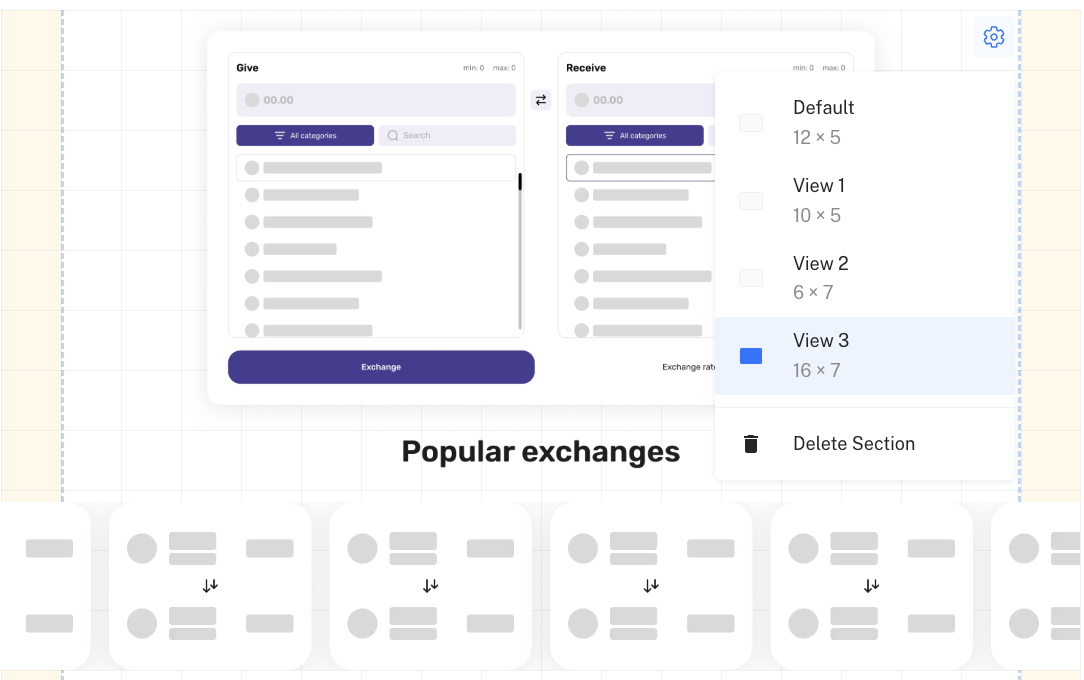
Each block on the canvas has **a gear icon** — it is the main control element for the block's appearance.
Clicking the gear icon opens the settings menu for the specific block.
The site description block is an independent editable form for filling in and editing; by clicking the gear on it, you can access editing directly in the Page Builder section.
#### 5.2 Block display variants
In the block settings the administrator has access to:
* various **design options of the block**;
* alternative **display templates**;
* different visual representations of the same functionality.
For example, the same block can:
* be displayed in a compact form;
* have an extended version;
* use a different visual style or structure.
#### 5.3 Switching variants
The administrator can:
* select one of the available display options;
* instantly apply changes;
* visually evaluate the result right in the Page Builder.
This allows you to flexibly adapt the main page for:
* business goals;
* marketing campaigns;
* seasonal changes;
* A/B testing of visual solutions.
### 6. Saving changes
After making any changes (changing the order of blocks or selecting a display variant):
* changes must be saved;
* after saving they are applied to the site's main page;
* the update occurs without the need for additional actions.
It is recommended to check the result on the client side of the site after each significant change.
### Recommendations for use
* Change the page structure gradually, checking the result.
* Use different block variants to increase conversion.
* Place key blocks higher on the page.
* Before large-scale changes, it is recommended to fix the current page structure.