> For the complete documentation index, see [llms.txt](https://lara-script.gitbook.io/docs/llms.txt). Markdown versions of documentation pages are available by appending `.md` to page URLs; this page is available as [Markdown](https://lara-script.gitbook.io/docs/partner-payouts.md).
# Partner payouts
### **Partner Account Creation, Wallet Setup and Affiliate Payout Request Flow**
This document describes the standard interaction flow for partners using the web interface, including account creation, wallet addition, and submission of an affiliate payout request. The instruction is relevant for partners working with referral traffic, including aggregators such as BestChange, Kursoff, Obmify or other.
### **1. Account Registration**
#### **1.1. Entry Point**
A partner navigates to the platform’s web interface and starts the registration process.
#### **1.2. Steps**
1. On the main page, select **"Sign Up / Register"**.
2. Fill out the registration form:
* Email (must be unique and valid)
* Password
* Password confirmation
3. Confirm the email if prompted.
4. Log in to the personal account.
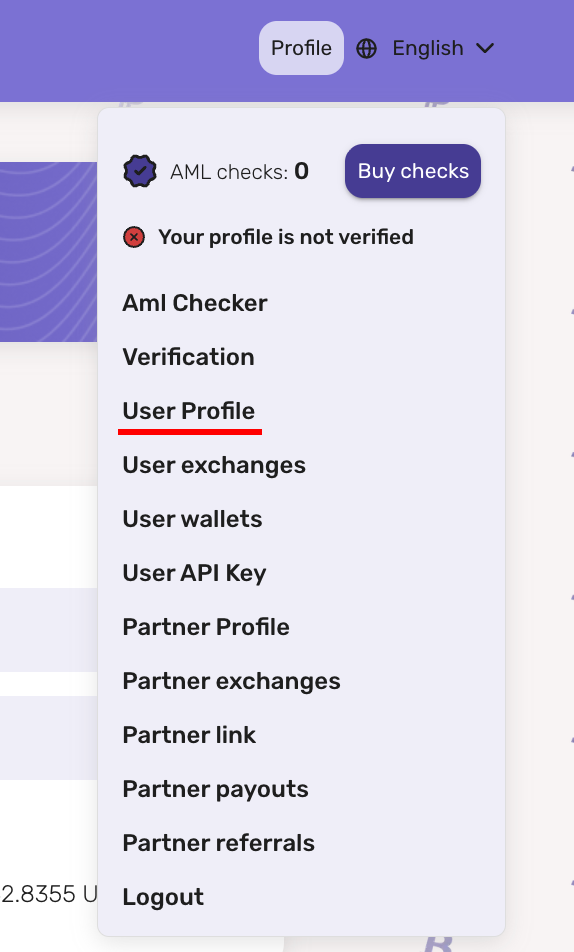
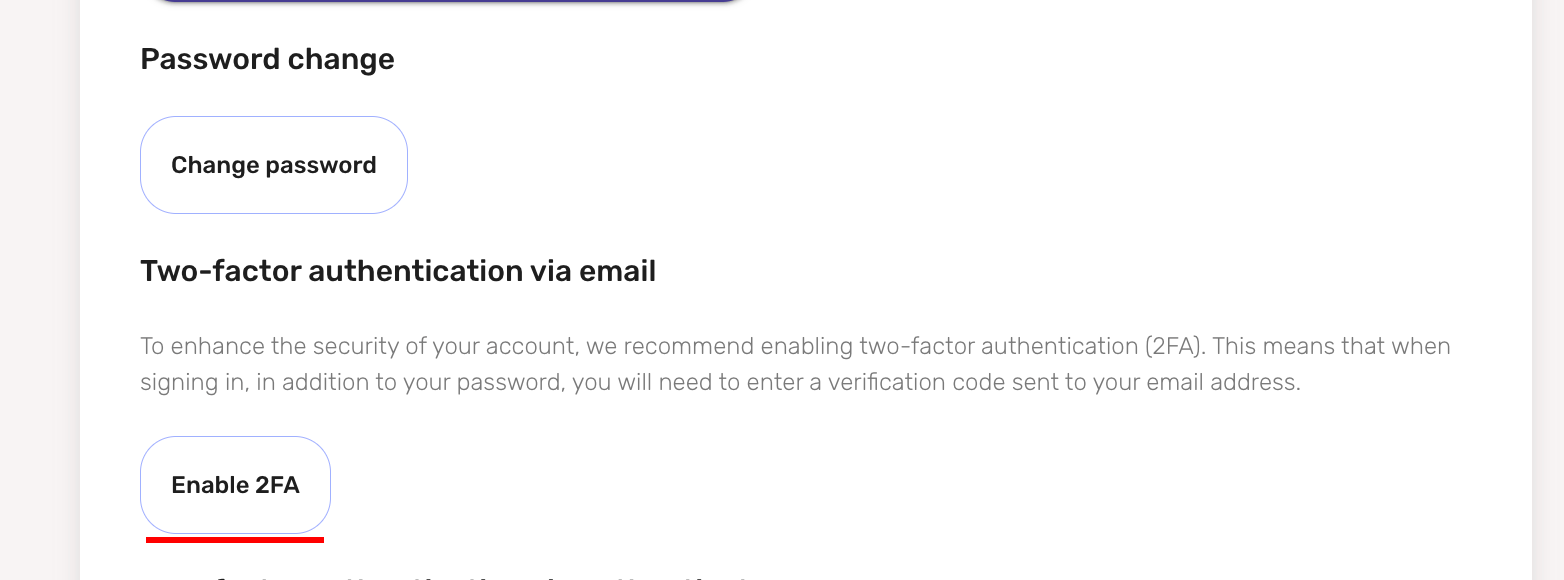
After successful login, the system redirects the user to their **Personal Account**. We strongly recommend that you also enable two-factor authentication via email in the “**User Profile**” section of your Personal Account.
### **2. Adding a Card or Wallet**
Adding payout details is mandatory before submitting affiliate payout requests.
#### **2.1. Navigation**
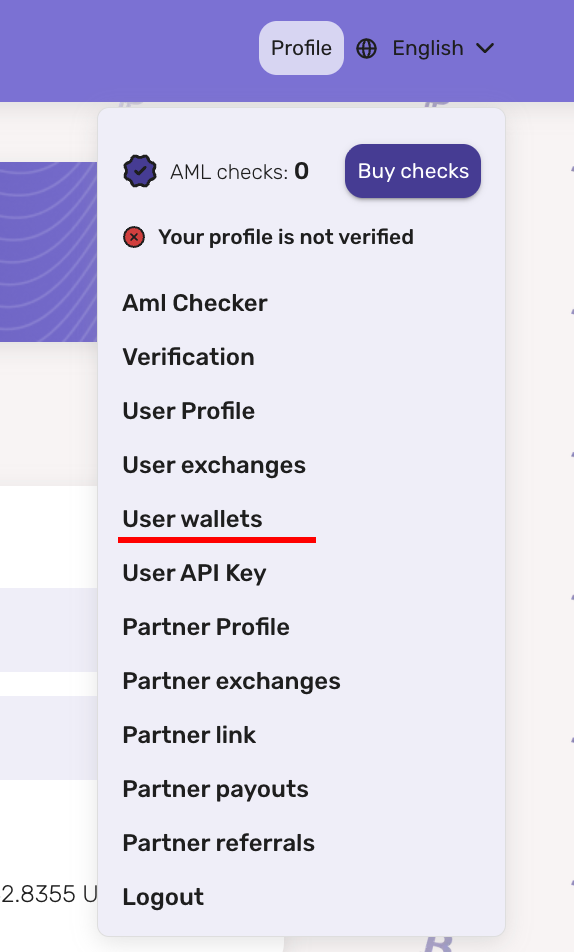
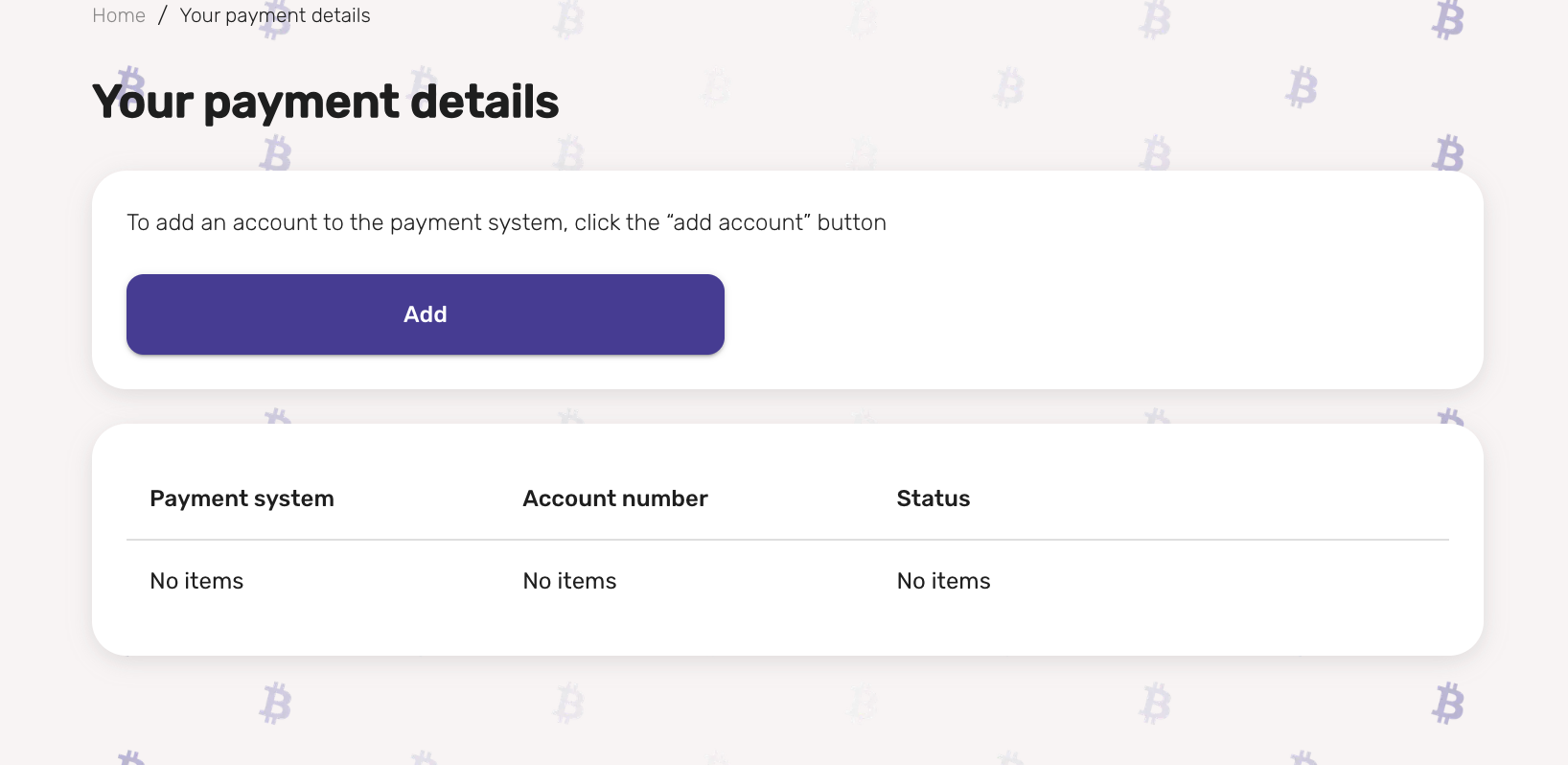
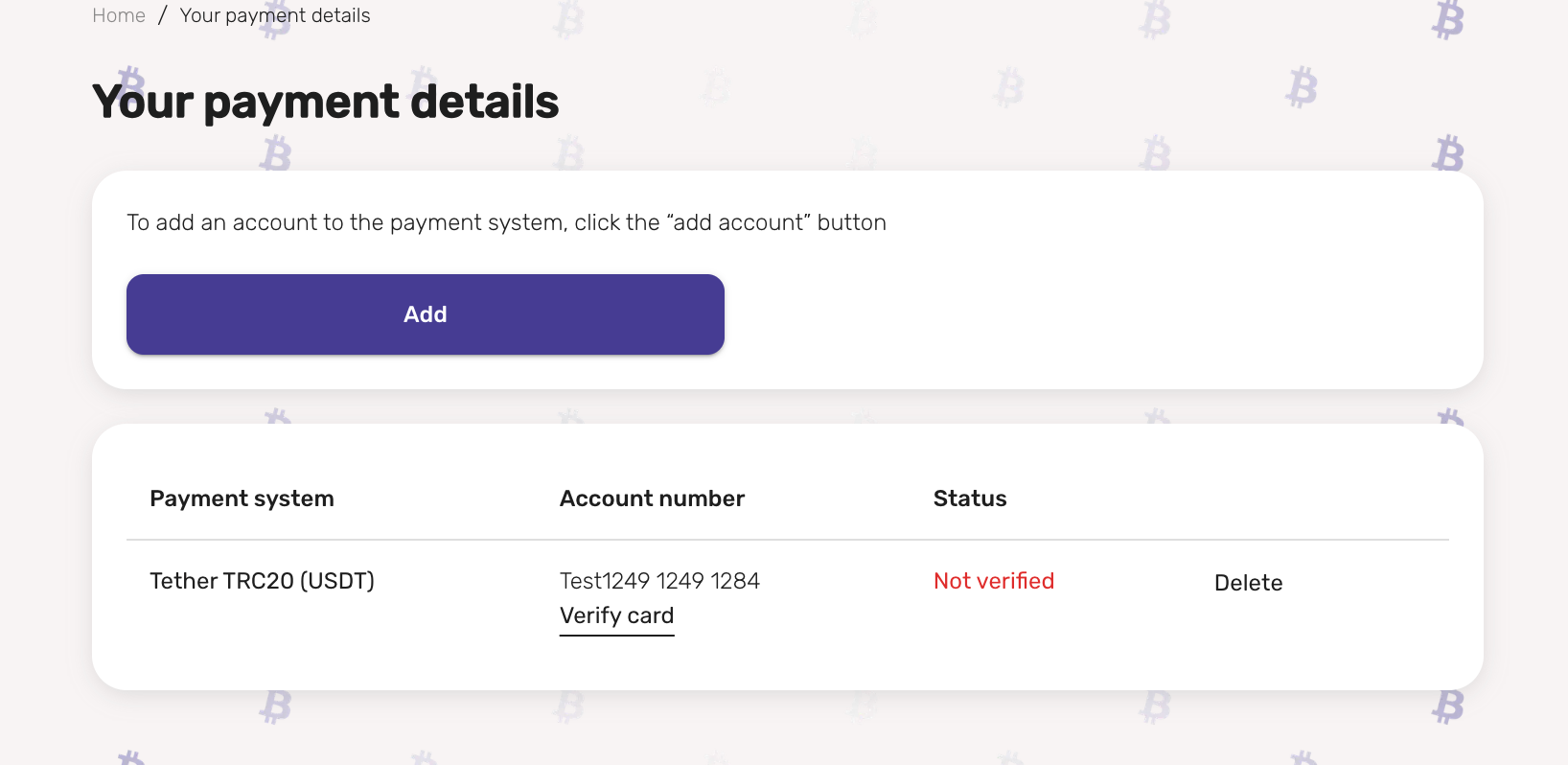
**Profile → User wallets**
#### **2.2. Adding a new wallet**
1. Click **“Add”**.
2. Fill in the required fields:
* Currency type (USDT)
* Wallet address
3. Confirm the creation of the wallet.
After saving, the wallet appears in the list of **User wallets.**
### **3. Administrator Verification of the Wallet**
#### **3.1. Initiation**
In the cards list, the partner clicks **“Verify card”**.
#### **3.2. Processing**
1. A verification request is automatically sent to the administrator.
2. The administrator validates the provided details.
3. After approval, the card status changes to **“Verified”**, enabling the payout functionality.
Without confirming your details, the “Partner Payments” section will be unavailable. As a partner, you can also inform the project team that you have created a request to confirm your details.
### **4. Creating an Affiliate Payout Request**
#### **4.1. Navigation**
**Profile → Partner payouts**
#### **4.2. Request submission**
1. Select a verified card/wallet from the dropdown list.
2. Enter the desired payout amount (not exceeding the affiliate balance).
3. Click **“Make a request”**.
The system creates a payout request, which becomes visible in the affiliate payout history.
### **5. Payout Request Processing**
1. The administrator reviews the request.
2. Once approved, the payout is sent to the selected User wallets.
3. The request status updates accordingly (e.g., *Pending → Processing → Completed*).
### **6. Diagnostics & Support**
If the card is not verified or the payout is delayed:
* Check the card status in **User wallets**.
* Ensure that the wallet details are complete and valid.
* Contact support and provide account email and partner type (e.g., BestChange referral).