# Static pages
#### **1. List of all static pages**
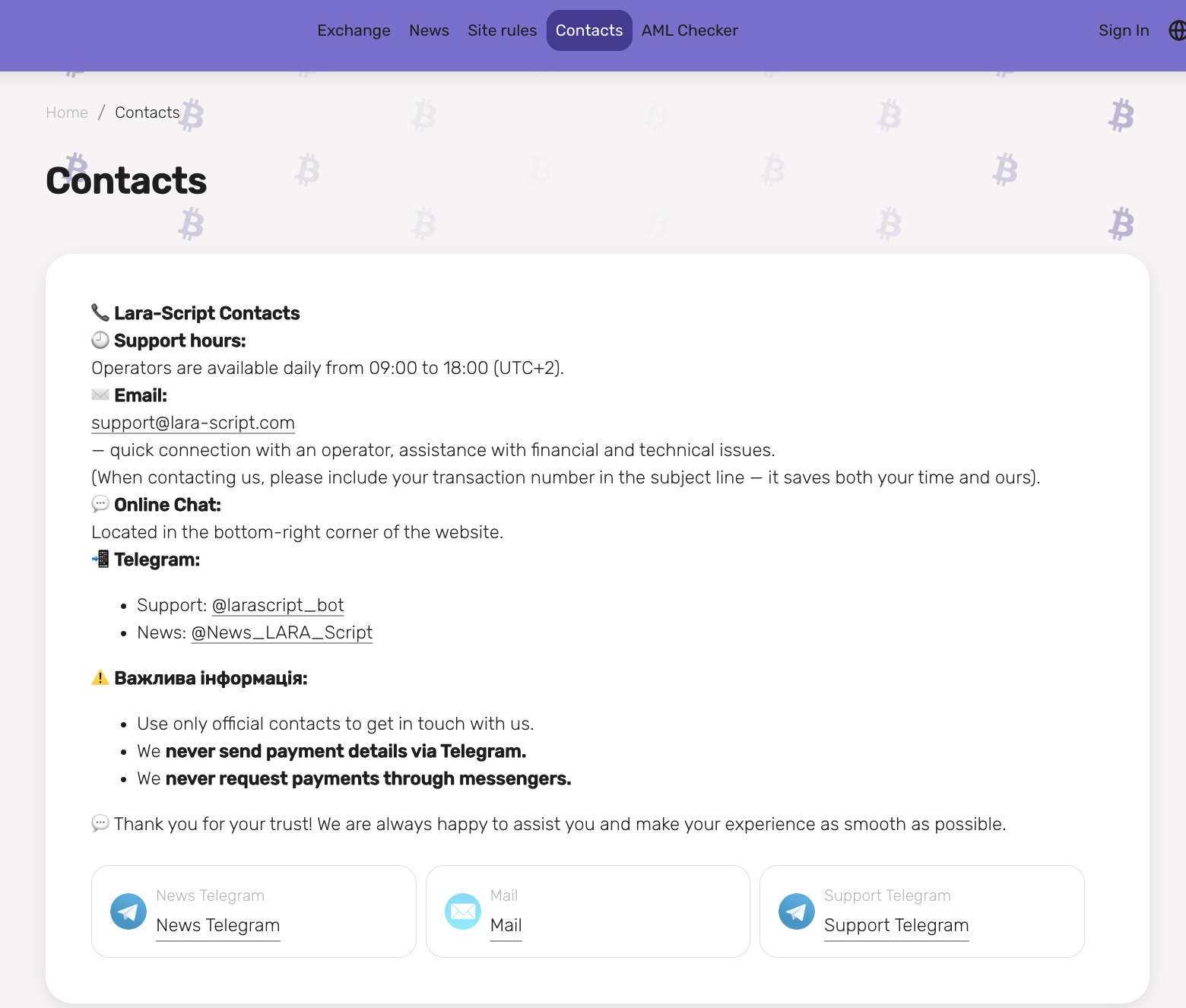
The Static Pages section displays a table with all pages already created, which will be available for display on the exchange office website later through the [Layout builder](https://lara-script.gitbook.io/docs/ru/funkcional-admin-paneli/nastroiki/konstruktor-maketov); it is a convenient tool for independently managing the interface and content of your site.
The table contains the following columns:
1. Title — the name of the static page, which is set during its creation.
2. Link — the address (URL) at which this page is accessible.
3. Active — a switch (slider) indicating whether the page is displayed on the site. If necessary, it can be temporarily disabled.
4. Actions — a set of tools for managing the page:
* View — opens the page in a browser window.
* Edit — change the page's content or settings.
* Delete — completely remove the page from the system.
At the top of the page there is a "+ Add" button that allows you to create a new static page.
#### 2. Creating and editing a static page
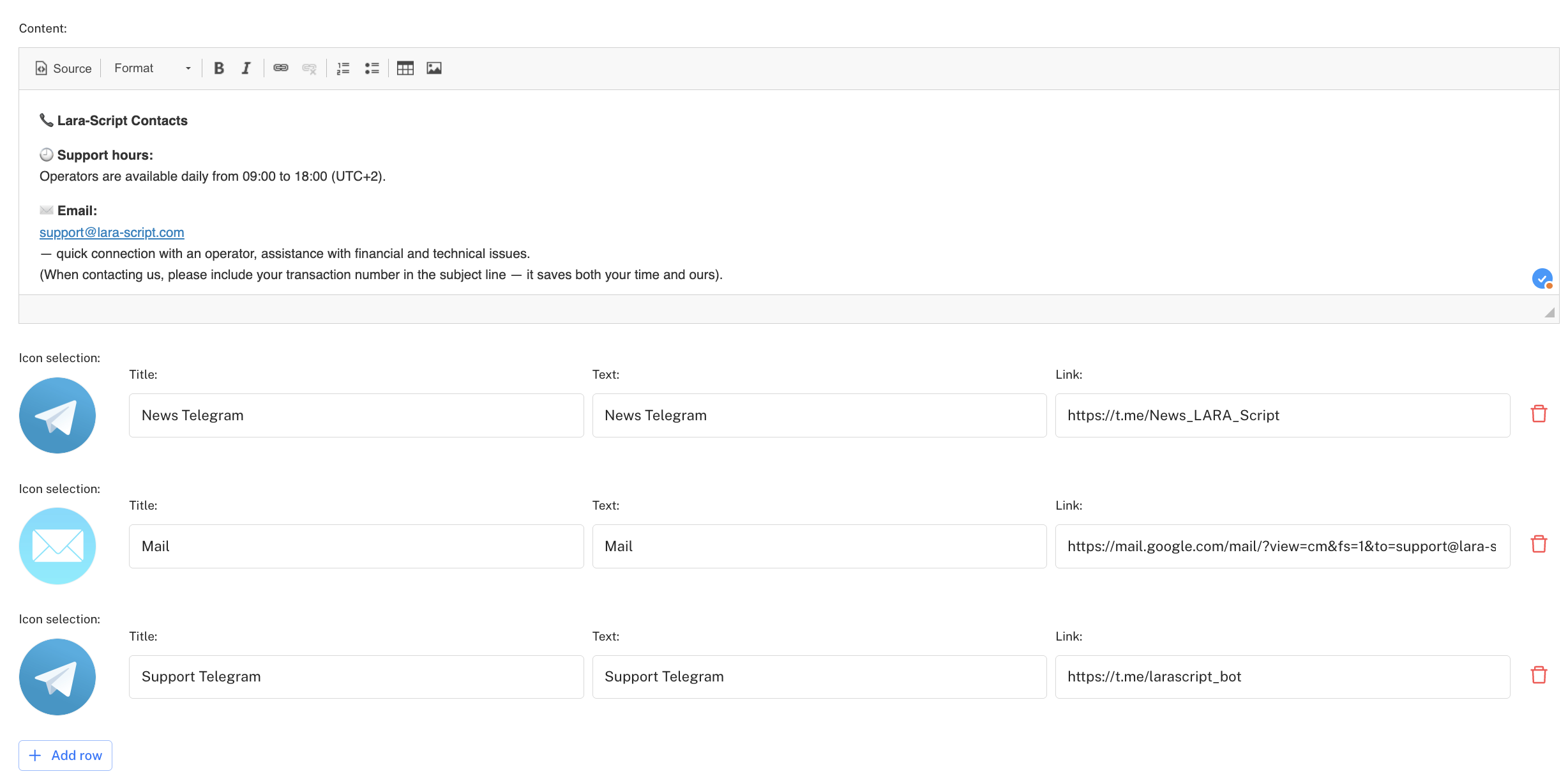
When adding or editing a static page, a form opens with the following fields:
1. Main information
* Active — turns the page's display on or off on the site.
* Parent page — allows you to choose the main page to which the new one will be attached (default is "Not selected").
* Link — the page URL that will be used to open it.
2. Content localization
* Title — the name of the page that will be shown in the interface.
* Description — a short textual description of the page (often used in SEO).
* Keywords — a set of keywords for search optimization.
* Upload an Open Graph preview image — this protocol is used to influence how a web page is shared on social networks. It uses metadata on the web page to create a standard format used across various social channels. This allows web developers and SEO specialists to influence how the page appears when shared on social networks. Also, for each localization you can choose separate images, which allows adapting how the page is shared in different languages.
* Content — the main textual part of the page where the required information is placed (HTML text when using the "Source" section, formatted content, images).
After filling in all fields, you need to click "Save" (or "Publish") for the page to become available for display on the site.
After filling in several static pages, for example with AML Rules, Site Rules, you only need to configure them to be displayed on the site in the upper or lower part of the site called the header and footer. Until you set their display in specific places, they will not appear on the web part of your site. To configure the display, go to Settings - Menu Builder, and following the [instruction](https://lara-script.gitbook.io/docs/ru/funkcional-admin-paneli/nastroiki/konstruktor-maketov/zagolovok-menyu) you can link pre-created pages into blocks and sections[ ](https://app.gitbook.com/o/ugHkX861lAsDSJANOwoJ/s/hfjdg51rnoeJBWKg14pe/admin-panel-functionality/resources/news)