# Banners
### **Site notifications (Banners)**
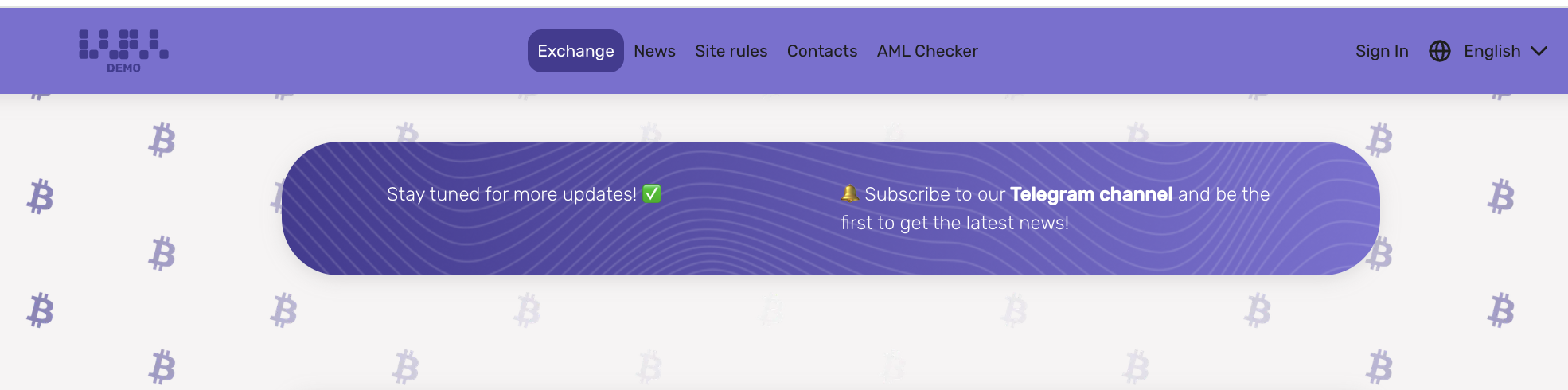
Function **adding a banner** placing a banner at the top of the website allows you to quickly convey important information to users: announce promotions, new features, or other updates. It is a convenient tool for effective communication with customers.
### **🔹 How to add a banner**
1. Go to the menu **Resources → Banners**.
2. Click the button **“+ Add”**.
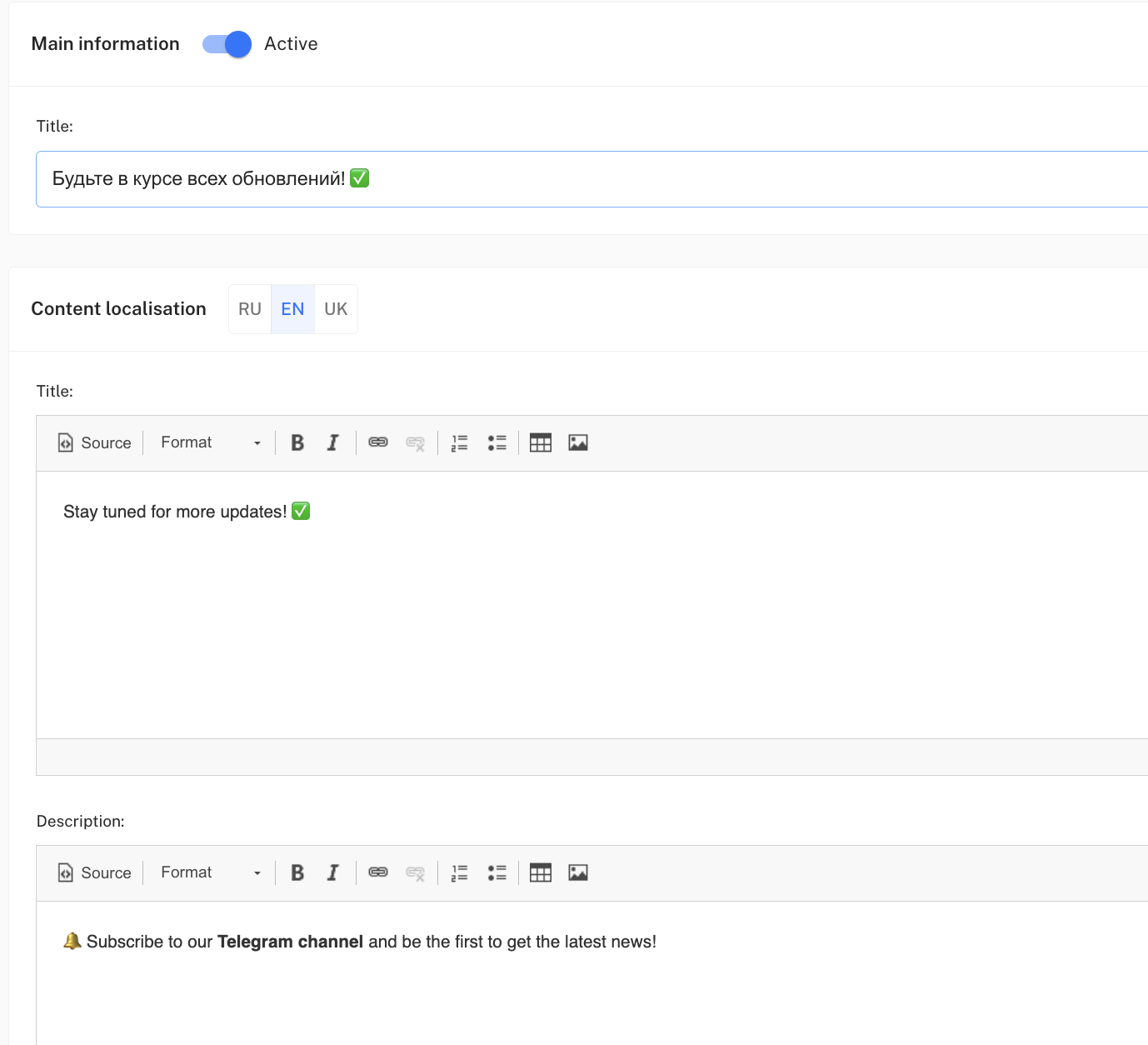
3. Fill out the form that opens:
#### **Main information**
* **Active** — toggles the banner display on the site on or off.
* **Title** — internal name of the banner (visible only in the admin panel for convenience, for example: *“Money for a review”*).
#### **Content localization**
This section allows you to add texts for different site languages (**RU / EN / UK**).\
For each language separately you can specify:
* **Title** — a short banner title that will be shown to visitors.
* **Description** — the main banner text (for example: *“Write a review and get 20 USDT”*).
#### **Additional parameters**
* **URL** — the link the user will follow when clicking the banner (for example, to the promotion page or review form).
### **🔹 Example of use**
* Title (in admin panel): *“Promotion: bonus for a review”*
* RU:
* Title: *“Money for a review”*
* Description: *“Leave a review and get 20 USDT”*
* URL: **
* EN:
* Title: *“Review Bonus”*
* Description: *“Leave a review and get 20 USDT”*
* URL: **
📌 All banners are displayed equally, and their display order is determined automatically and dynamically rotates on the site if there are multiple.