> For the complete documentation index, see [llms.txt](https://lara-script.gitbook.io/docs/llms.txt). Markdown versions of documentation pages are available by appending `.md` to page URLs; this page is available as [Markdown](https://lara-script.gitbook.io/docs/where-to-start-filling-the-site.-security.-step-by-step-actions/initial-site-content-filling.md).
# Initial site content filling
When you have learned how to create currencies, exchange directions, added a merchant to accept currencies, and filled exchange directions with descriptions, the logical next step to make the client feel comfortable is to fill the site with content: add chat, news, rules, contacts, and configure the site header and footer. This creates the impression of a live, trusted service. Let's go through the steps.\
\
When you have learned how to create currencies, exchange directions, added a merchant to accept currencies, and filled exchange directions with descriptions, the logical next step to make the client feel comfortable is to fill the site with content: add chat, news, rules, contacts, and configure the site header and footer. This creates the impression of a live, trusted service. Let's go through the steps.
####
### **💬 Adding an online chat**
Why a chat is needed:\
A client always wants a quick way to contact you. Even if there is a feedback form or email — chat works faster and is more convenient.
How to do it:
In the admin panel go to Settings → Interface Settings → Other, and find the Online Chat Script field.
Choose the chat type, one of the third-party ones from the suggested list **(the section will be expanded in the next update).**
Next, you need to register with the chat service that seems comfortable to you; we recommend choosing Binotel…\
In the chat service settings you can always find the JavaScript integration code for the online chat (for example, Chaport, Binotel, Jivochat and many others). To add the chat to the site it is enough to enter the key into the “Online chat script” section, and shortly the online chat you specified will appear on the site. The chat will display on the site, allowing users to contact support directly.
1. Further chat service settings will be made in the specific service's internal dashboard, where you can configure placement, colors, styling, basic welcome messages and other settings.\
\
\
**Result: a chat icon will appear on the site, and clients will be able to write to you while using the exchanger.**
If you want to learn more about the online chat settings section in detail, you can open the corresponding documentation section -
### **News - how to create and populate the section**
The “News” section is very important for an exchanger website. It shows the project is alive, allows sharing updates, promotions, changes, additions of currencies or directions. Without news the site may seem abandoned and users trust it less.
Below is a step-by-step guide on how to start working with the “News” section, what to fill in, how to publish so everything looks professional and convenient.
#### **🔍 Why news are needed**
* They show that the site is updated and active, not “dead”.
* You can notify clients about changes: added currencies, rate updates, new directions, technical work, or global news that affect your project's operation.
* They increase trust: when a person sees current news — they understand the service is active.
* They help SEO: search engines pay attention to new posts and fresh content.
#### **🛠 How to fill the “News” section — step by step**
1. **Open the “News” section**\
In the admin panel go to the menu Resources → News.
2. **View the list of existing news**\
Here you will see all already created news: their titles, publication date, status (active / inactive), a short preview and an image. This will help you understand the style and format.
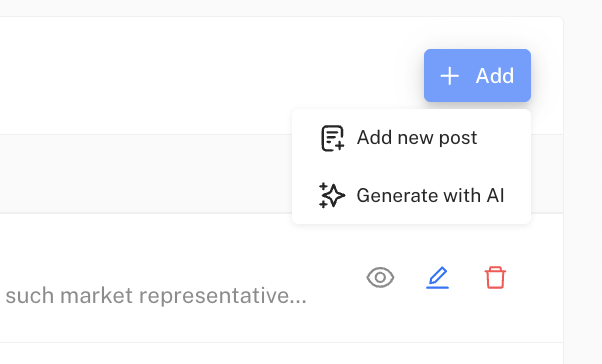
3. **Click “+ Add” and choose one of the publishing methods:**\
**1.** Add a new post - manual addition of news\
**2.** Generate using AI - an easier and faster way to add news using artificial intelligence
\
**Below we will look at both methods of adding news:**
1. **Manual news entry**\
By going to the corresponding section you will get to a page with the mandatory completion of the following fields
* **Image**\
An image makes the news more noticeable, visually attracts attention, will be displayed in the general news list; we recommend not skipping this item
* **URL**\
1–3 words in English separated by hyphens reflecting the essence (for example, "bitcoin-exchange-promo"). This is necessary for a clean link transition, essentially the URL name of the page displayed in the link section; each news item should have its own separate link.
* **Publication date**\
If you want, you can set a past date or schedule a future time if you want the news to appear later; similarly you can publish the news with a backdated date to fill the site.
* **Language / localization**\
If the site is multilingual, fill in the news version in all languages: title, image, text. This is important so everyone sees the same information in their language.
* **Preview text**\
A short description of the news displayed only in the admin panel in the general news list, convenient for understanding the news context.
* **Title**\
Come up with a short clear name. For example: “New currency X added”, “New promotion for bulk exchanges”, “Bitcoin reached a record price”.
* **Text**\
Describe in more detail. Explain what exactly changed and why it matters. Use simple sentences, break the text into paragraphs for easy reading; in this section you can also add images and different text formats.
2. **Publish the news**
3. **Check the display on the site**\
Open the “News” section on the public part of the site and make sure the title, image and text are displayed correctly. Check how it looks on mobile devices.
Congratulations, you have added a news item yourself. If after publication you notice the news is no longer relevant or you want to edit it, you can always return to the menu with the general news list and click the pencil button to edit, or the adjacent button to delete.
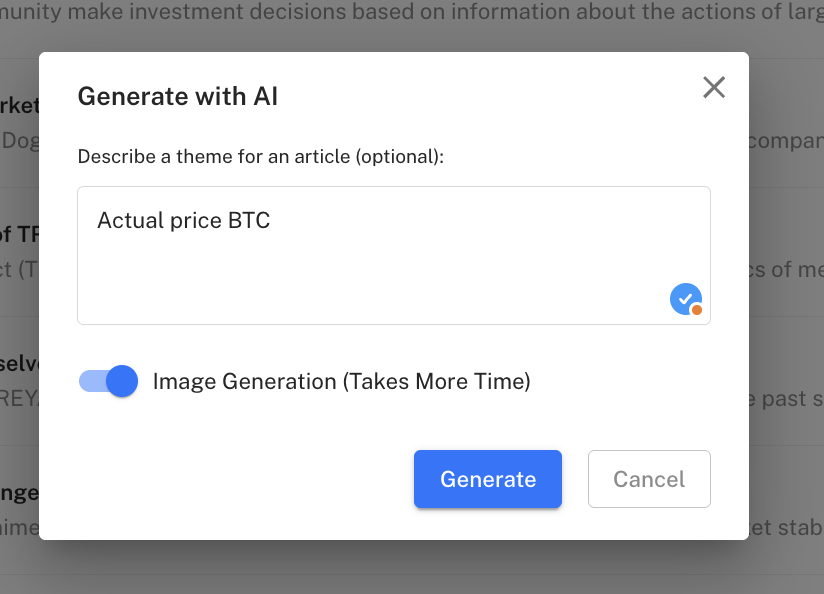
Let's also cover adding news using artificial intelligence - a popular feature among our clients.\
Return to the menu with the general news list and click “+ Add” → “Generate using AI”
\
You can generate the news text automatically - just describe the topic of the article and the AI will create a title, text and preview. This saves time, but always check the news for relevance.
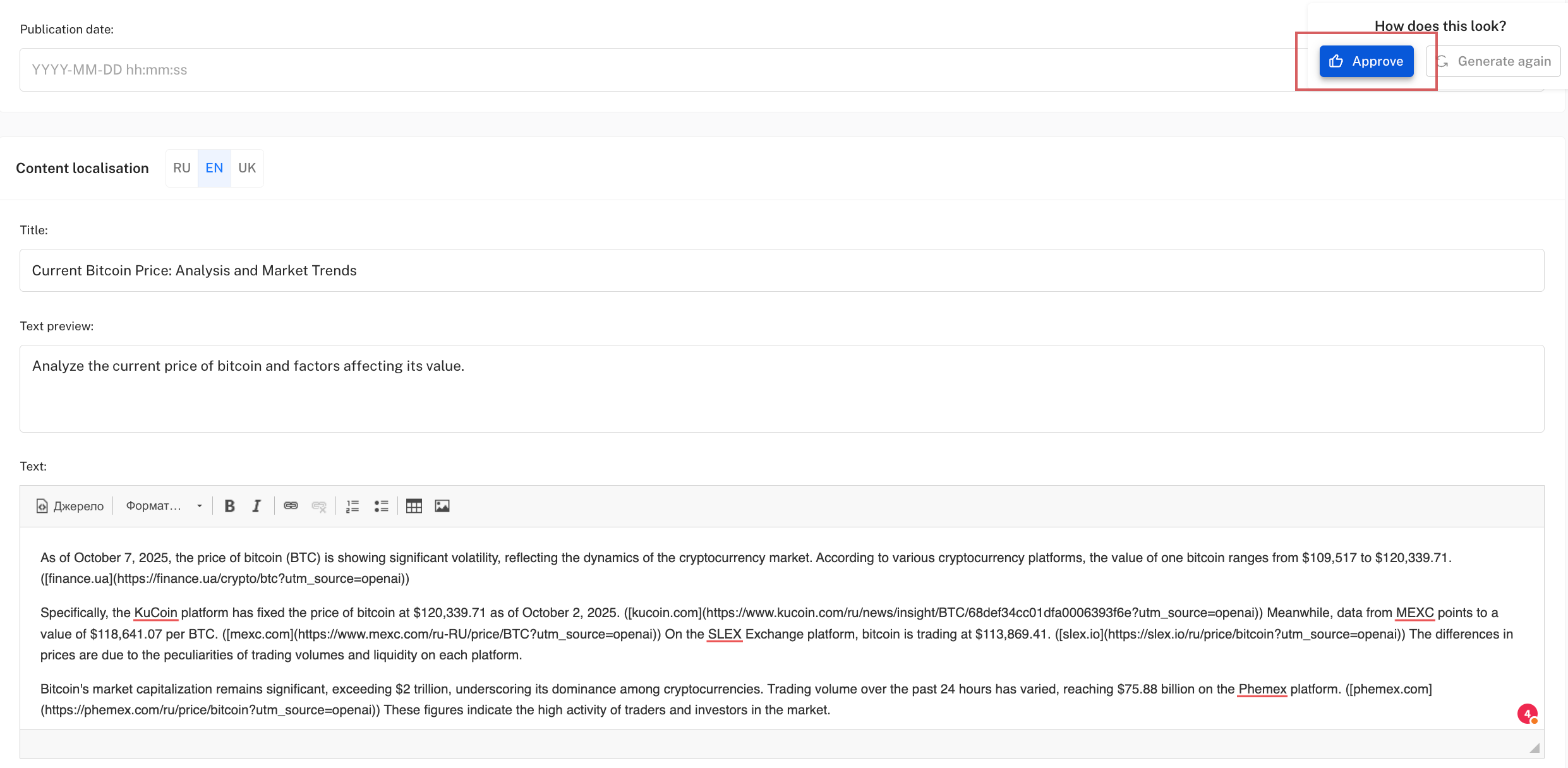
After generation, which usually takes 30–60 seconds, a new news item will appear in the general news list with an unusual icon in the Actions column - Awaiting approval, clicking which will take you to the news editing page you previously reviewed.
The AI will automatically fill not only the text, image and title fields, but also generate a URL link for you and localize the content for other languages adapted on your site while preserving meaning and text. You only need to approve the news or regenerate it.
Until the news is approved, it will not be displayed on your site.
#### **✍ Recommendations for design and content**
* Write in simple, friendly language without jargon. Imagine you are explaining to a neighbor who knows nothing about crypto.
* Keep news short and specific. Avoid long texts when a short paragraph will do.
* Use subheadings or lists if the text is long so it is easy to read — this is convenient.
* Include in the text **calls to action**: “Check the new rates”, “Added a currency - check the directions”, “If you have questions - write in the support chat.”
* Pay attention to formatting: use a single main image, neat formatting.
#### **🔧 Common mistakes and how to avoid them**
* Not filling all language versions → users using another language may miss an important news item.
* Publishing without an image or with a “broken” image → looks unprofessional.
* Too long or too technical headlines → better to be simple and clear.
* News with typos or without formatting (glued paragraphs) → harder to read, less trustworthy.
####
### **📜 Site rules**
**Why they are needed:**\
**Rules are your protection. They describe terms of operation, the order of requests, and responsibilities of the parties. Typically clients agree to the exchange rules before starting an exchange.**\
**Before creating the rules section itself, you must first create pages for specific sections, and only after that create the sections themselves.**
In the Resources - Pages - Static pages section a table displays all pages already created that are available on the exchange site for use; this is a convenient tool for independently managing your site's interface and content.
The table has the following columns:
* Title — the name of the static page assigned when it was created.
* Link — the address (URL) at which this page is available.
* Active — a toggle (slider) indicating whether the page is displayed on the site. It can be temporarily disabled if necessary.
* Actions — a set of tools for managing the page:
* View — opens the page in a browser window.\
Edit — change the content or page settings.
* Delete — complete removal of the page from the system.
At the top of the page there is a “+ Add” button that allows you to create a new static page.
**Creating and editing a static page**
When adding or editing a static page a form opens with the following fields:
* Main information
* Parent page — allows you to choose the main page to which this page will be attached (default “Not selected”).\
Link — the URL of the page that will be used to open it.
* \
Content localization - If the site is multilingual, fill in the version in all languages: title, description, text. This is important so everyone sees the same information in their language.
* Title — the page name that will be displayed in the interface.
* Description — a short textual description of the page (often used in SEO).
* Keywords — a set of keywords for search optimization.
* Content — the main textual part of the page where the necessary information is placed (HTML text, formatted content, images).
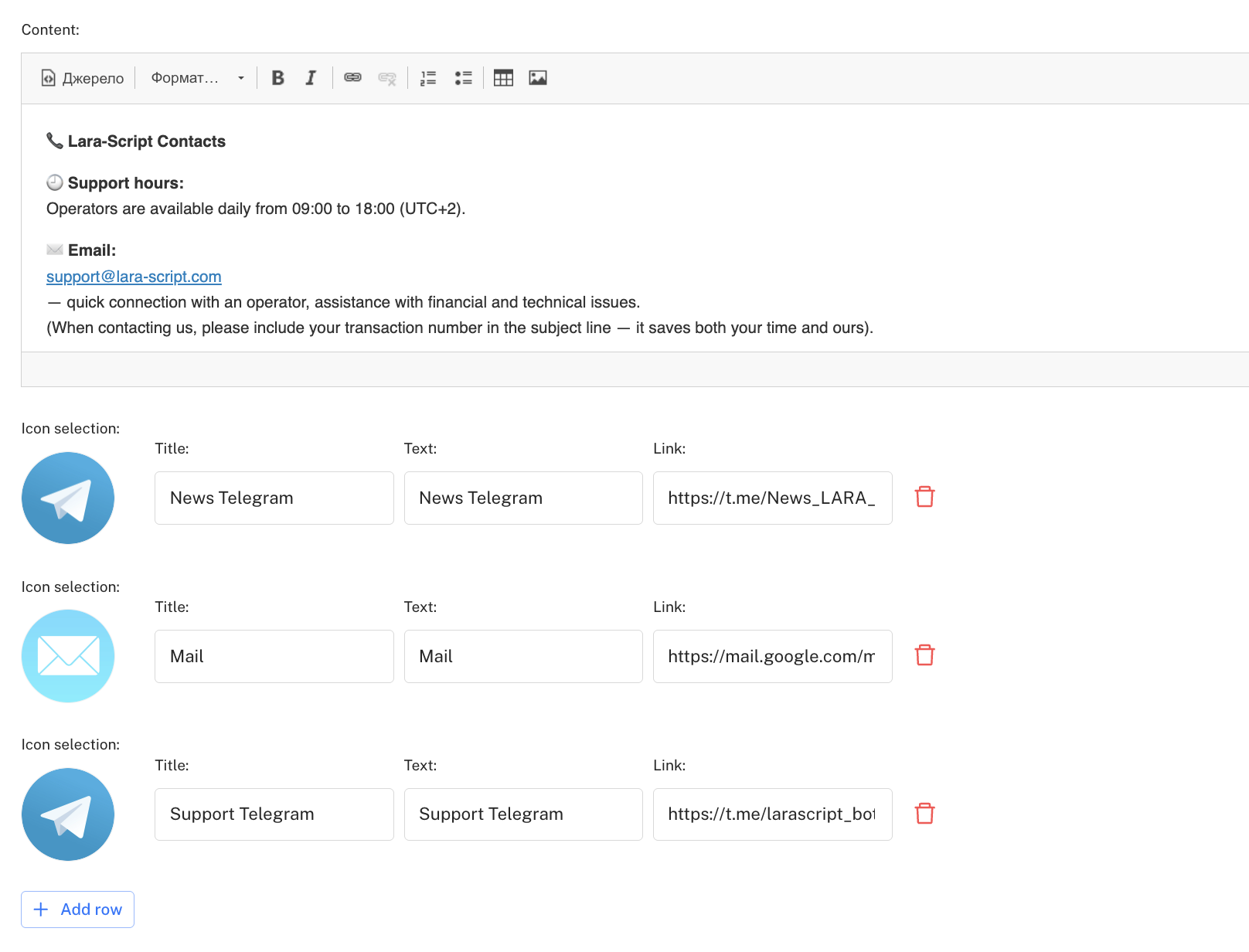
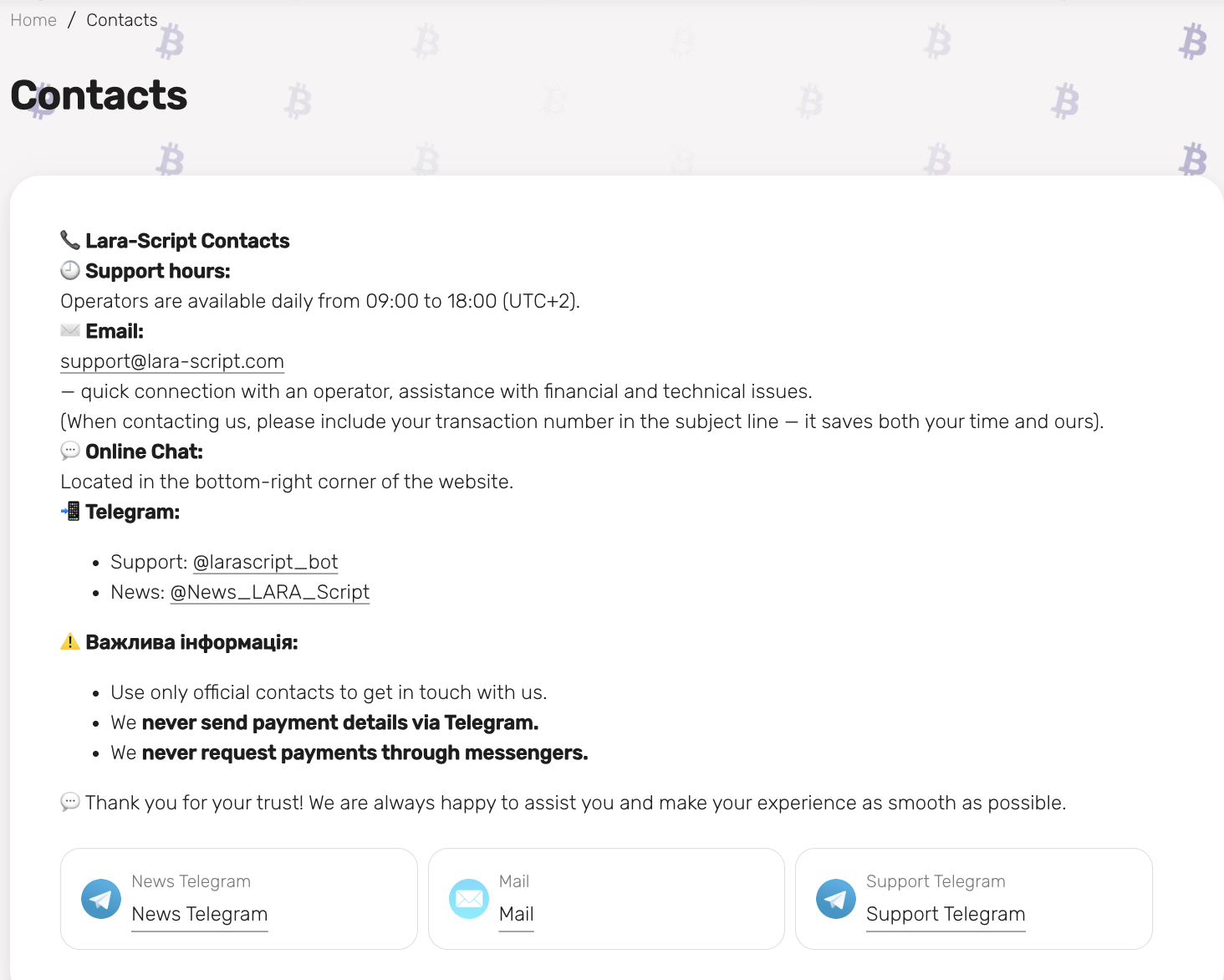
By filling in the next section “Contact” in the admin panel you will see new unfamiliar fields for filling clickable contact icons that you can specify if desired.
If you use the command “mailto:\*Your Email\*” then clients will have clickable links to the specified email, and on the web page it will look like this:
After filling in all fields you need to click “Publish” for the page to become available for further use and display on the site.
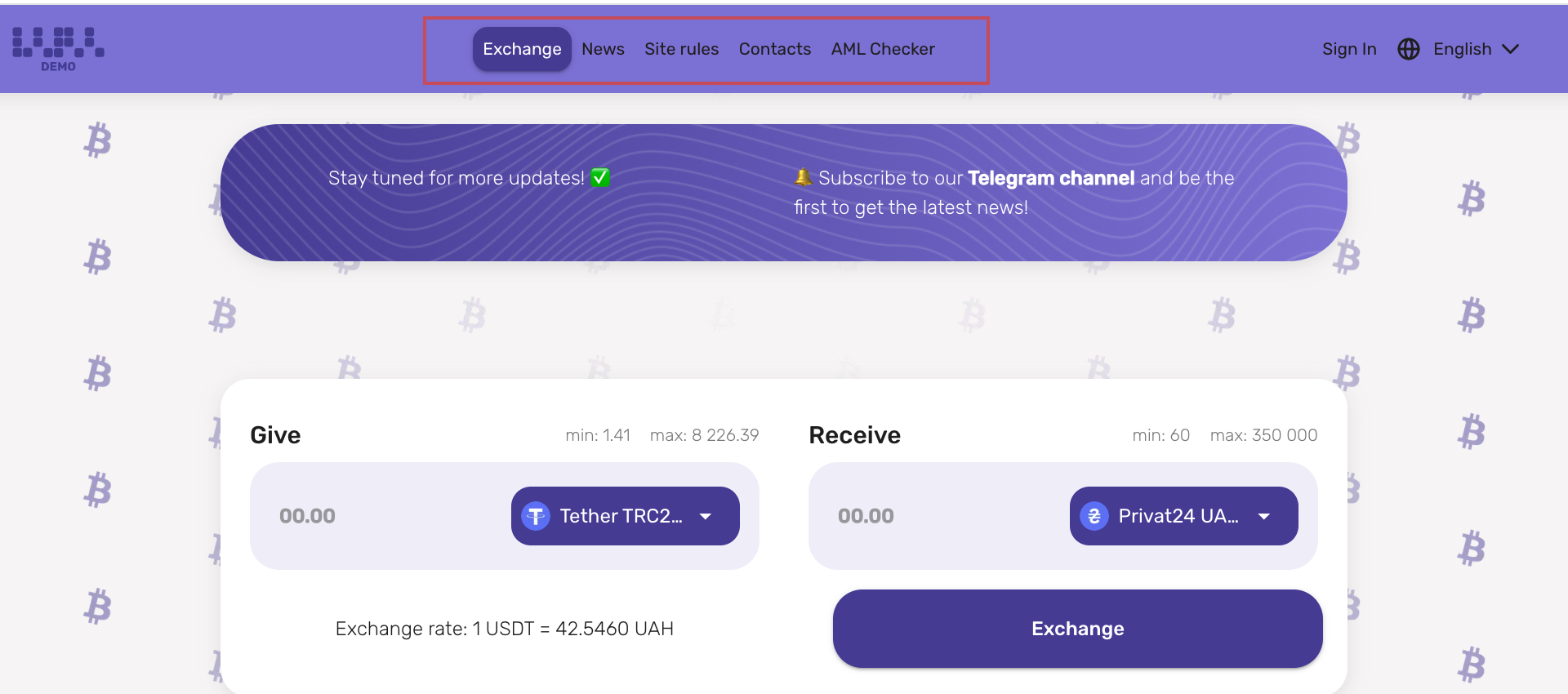
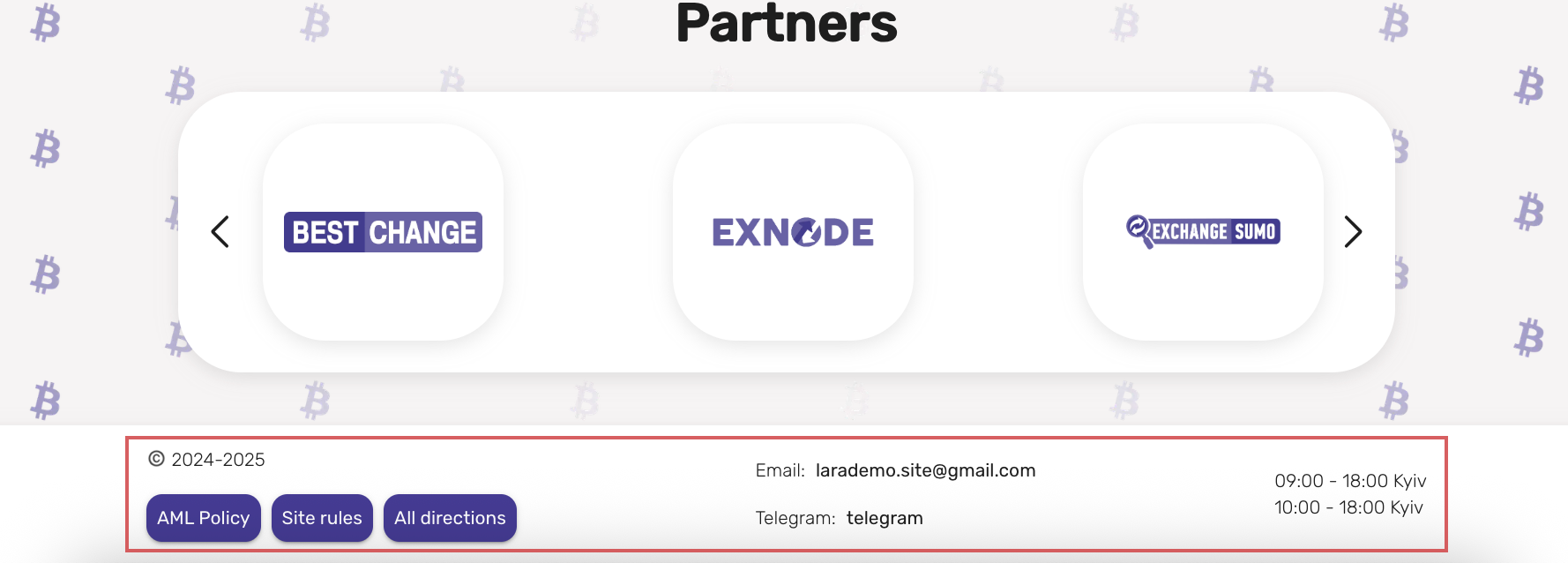
After filling several static pages, for example with AML Rules and Site Rules, you just need to configure them for display on the site in the top or bottom parts of the site called the header and footer.
### **🖼 Filling rules in the site header and footer**
#### **What it is:**
**Header — the site “top” (menu, logo, login/registration buttons).**
**Footer — the bottom part (contacts, copyright, quick links).**
**How to configure menu item display:**
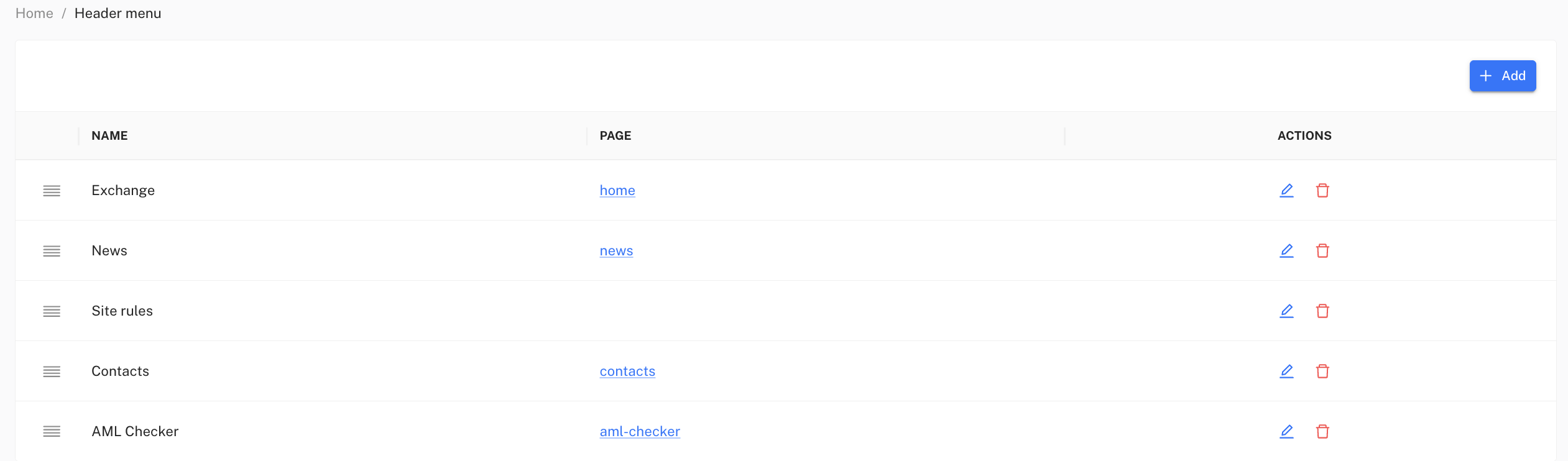
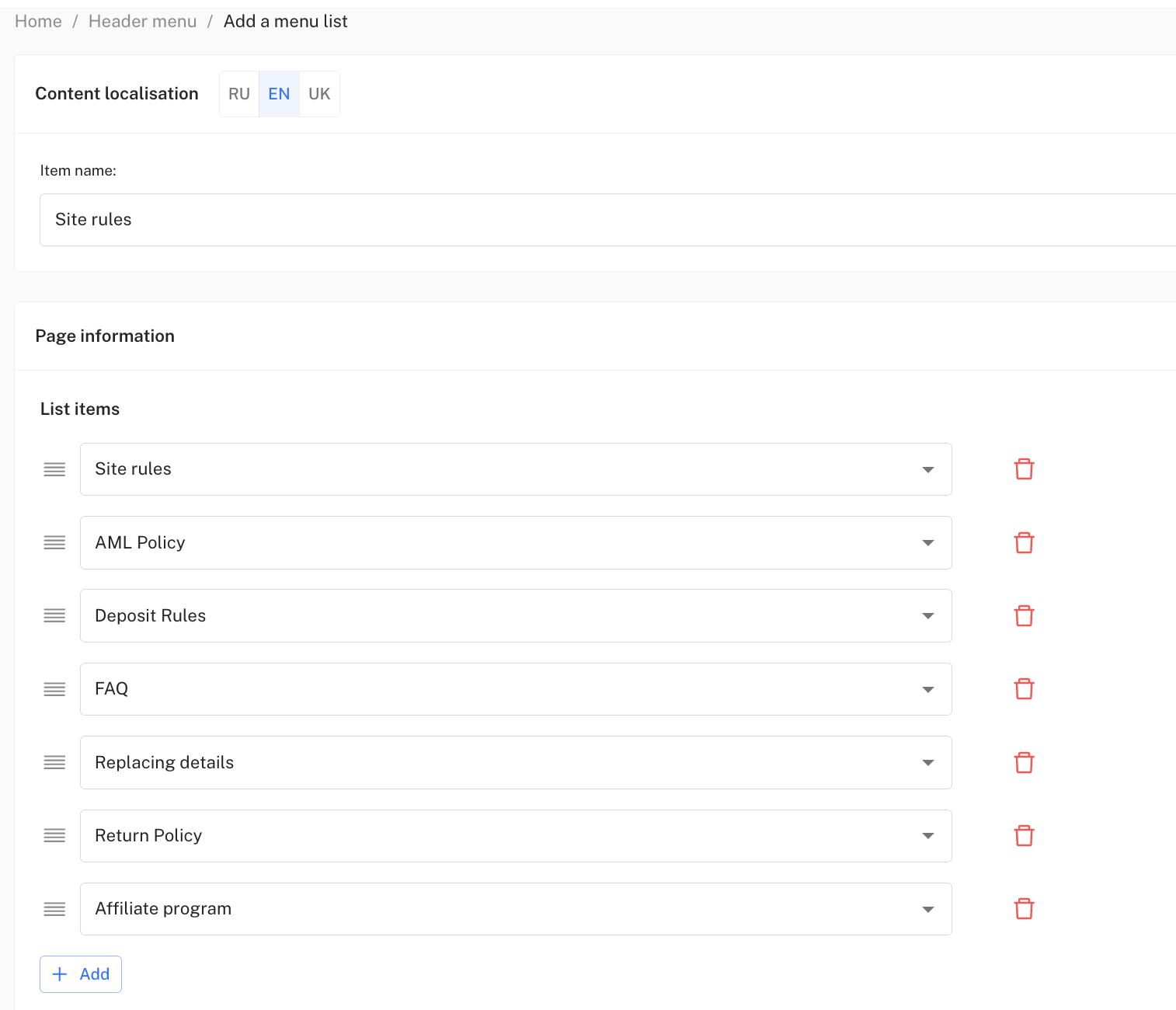
1\. In the admin panel find the Design Editor section. Settings - Layout Builder - Menu Header, or Bottom Menu, depending on which section you want to edit\
2\. The section displays all created layouts with their names.
Each layout can be deleted using the trash icon, or edited with the pencil.\
Each layout consists of **headings** (for example: “Information”, “Documents”, “Support”).\
You can attach a list of pages to the header that will be displayed as clickable links.
**Working with blocks**\
In edit or add layout mode the following actions are available:\
\- **Content localization**\
If the site is multilingual, fill in the name version of the element in all languages, namely the title. This is important so everyone sees the same information in their language.\
\- **Element name**\
The specific name of the page displayed on the site\
\- **Page information**\
Here you can choose list items that will be displayed in a dropdown menu on hover, or it can be a single pre-created page in the “Static pages” section
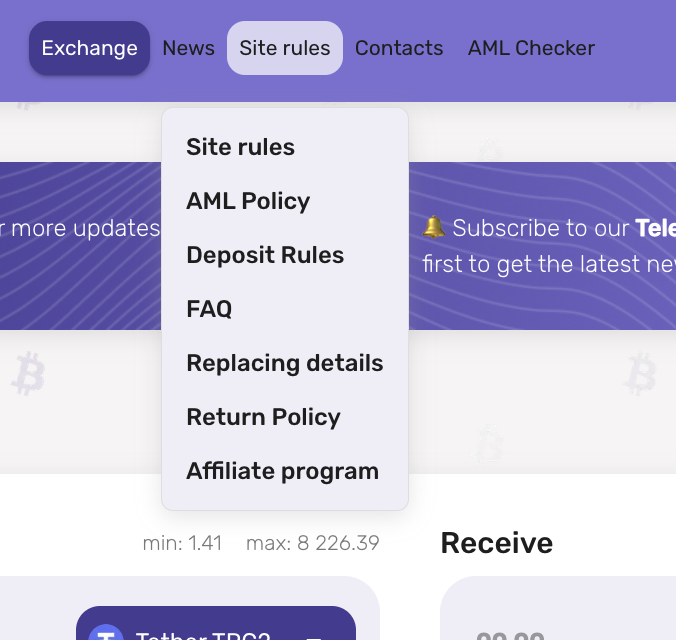
You can configure the list of elements like in the screenshot from previously filled static pages, and on the public part of your site it will look like this:
But be careful: if you want to add information to the header (bottom part of the site) outside links to the service rules, you need to go to Settings - Interface Settings - Web Settings, and in that section you can also configure the texts displayed at the bottom; more details are in the documentation section -
#### ✅ **Example of use**:
A layout is created in the header **a menu list**, a layout with a title is created **“Information”**, under which links are placed to the pages *About us*, *Service rules*, *Privacy policy*, *Contacts*. Next to it you can add **a menu item** a separate block **“Help”** with a link to *FAQ*.\
**Tip: header and footer are the “face” of the site, try to make them look neat and consistent across all pages.**
####
### **AML check (section will be expanded)**
**Why it is needed:**\
**This is a client-side check of cryptocurrency addresses for “cleanliness.” It helps filter risky transactions (related to fraud, darknet, money laundering) and you do not need to intervene in their checking process, only preconfigure rates and costs of checks.**
### **⭐ Customer reviews**
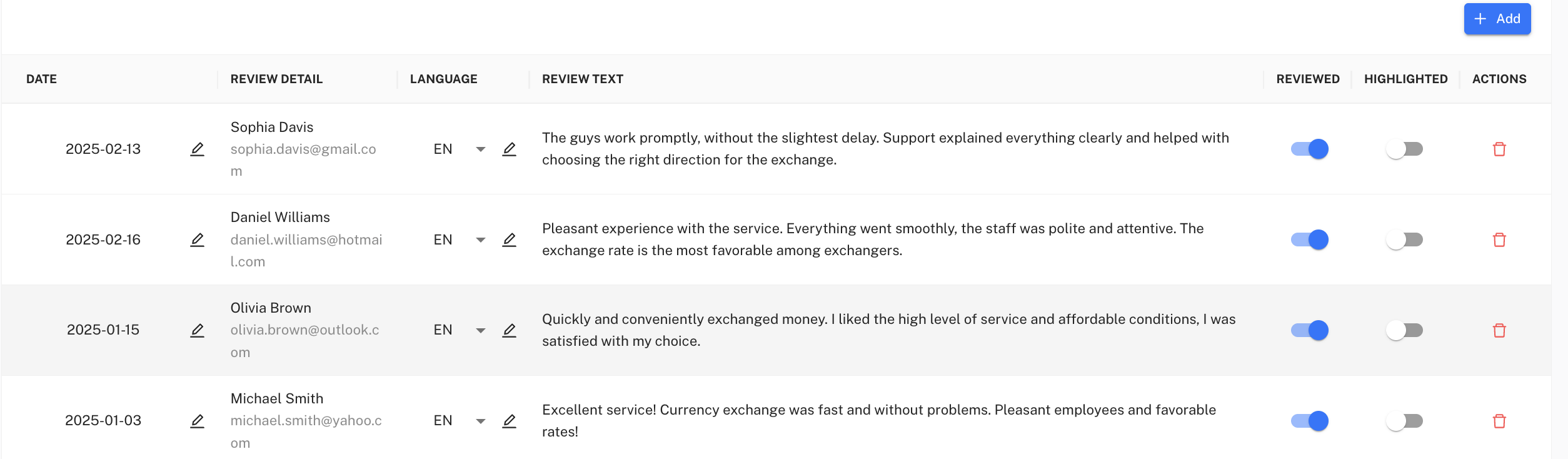
Clients can leave reviews about their cooperation with the service on the exchanger website. This helps increase trust in the company and creates a positive image among new users. To view the list of all reviews, go to the **Resources** - **Reviews** section in the admin panel menu on the left. The page provides a table with the following data:
**Date** – the review creation date;
**Review details** – the author's name and email;\
Language - the language version in which this review will be displayed. If a client left a review in another language and did so on the Russian version of the site, you can choose which language version of the site to display this review on.
**Review text** – the review itself;
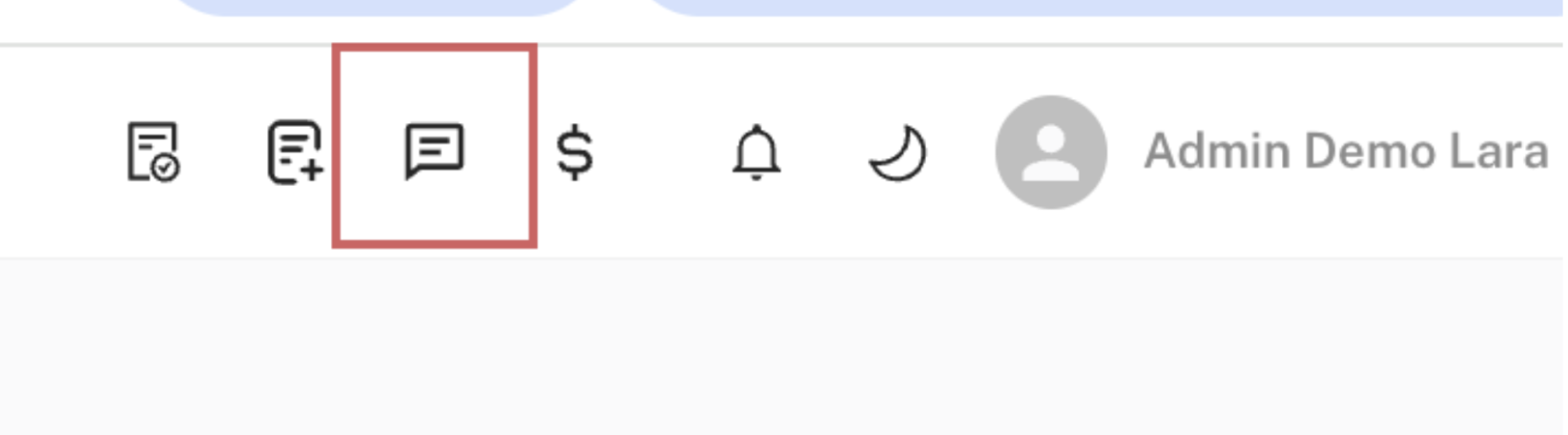
**Viewed** – indicates whether the administrator has read the review. If the review is new, it will also be shown at the top of the admin panel with a corresponding numeric badge.
**Highlighted** – a marked review that can be shown on a page;
**Actions** – the option to delete the review.
#### Administrators can:
hide or show the review on the site using the toggle;
mark the review as highlighted so it appears on the main page;
delete the review by clicking the trash icon. ⚠️ It is not possible to change the review text or date.
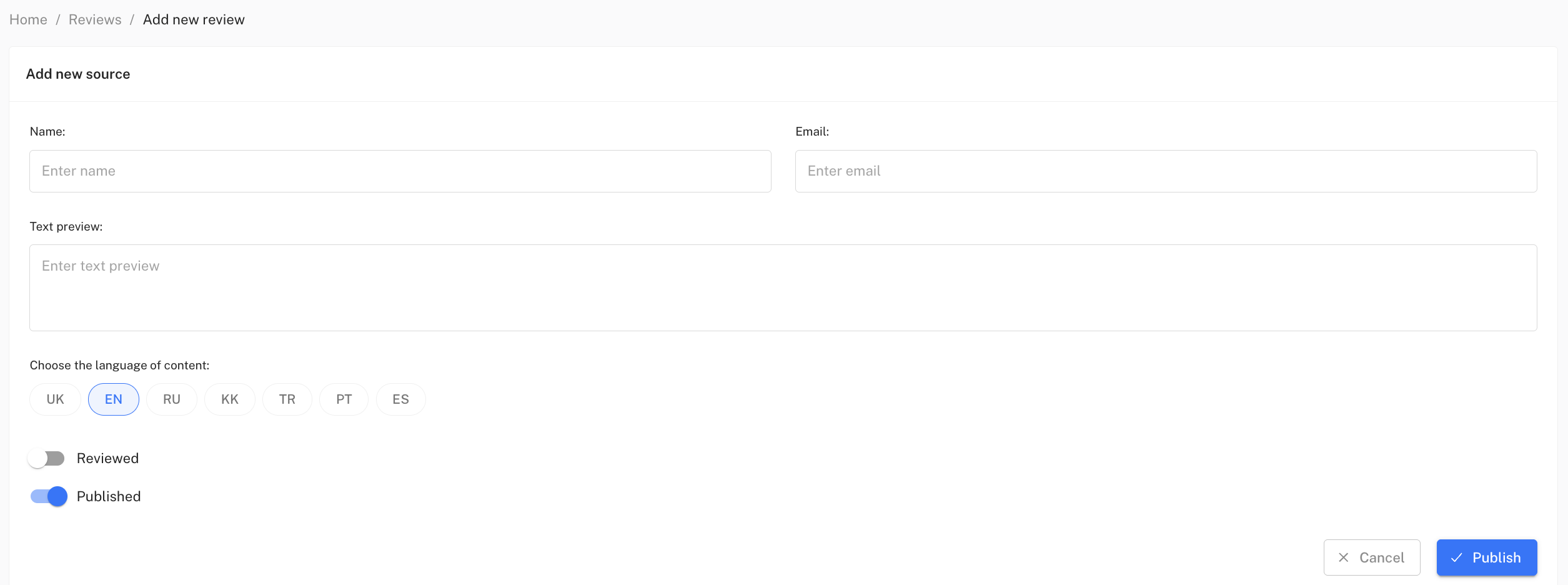
**Adding a new review**
An administrator can manually add a review themselves. To do this, click the **+ Add**button, after which a form will open with the fields:
**Name** – the author's name.
**Email** – a contact email address (not displayed publicly).
**Preview text** – the review text that will be shown on the site.
**Content language** – choose the language (UK/EN/RU).
**Viewed** – you can immediately mark the review as verified.
**Highlighted** – make the review “featured” to display on the main page.
After filling in the fields click the **Publish**button to add the review to the site.
Tip: you can add the first reviews yourself (test ones), but later ask real clients to leave feedback about your service
### **⚠️ Important tips after initial site content population**
* Do not launch too many currencies and directions at once — start with popular ones.
* Monitor reserves and limits, and correct operation of address generation for payments.
* Before the official launch make sure all site sections (rules, contacts, FAQ) are filled — this builds user trust.
* Use only official communication channels (email, on-site chat, Telegram bot).
* Perform several test requests yourself, go through the path of a regular client, try changing request statuses, and monitor how their statuses are displayed on the client side both in email and on the site page. Created requests will be shown in the All Requests - Requests section, and you can learn more about functionality and items on the page in the technical documentation -