# Requests
### Components of the request
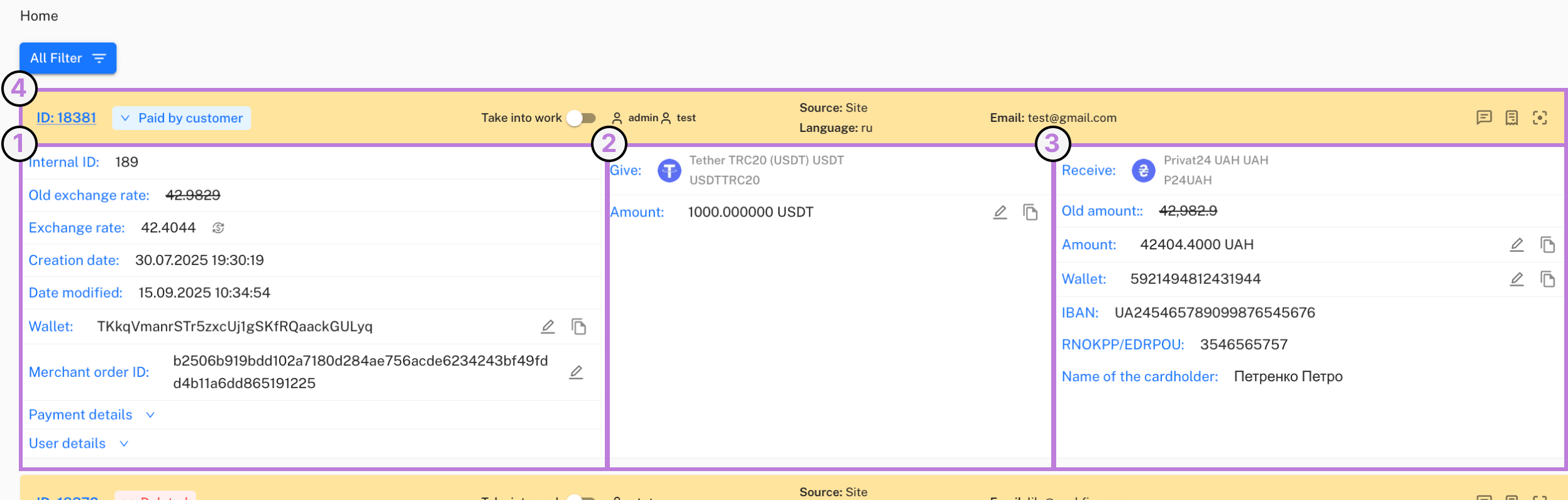
The main page that displays all customer requests is located in the left side menu under “Requests → All requests”. Here you can view each request in detail, understand how it was created, and trace the full lifecycle — from the moment of submission to complete fulfillment, including all possible nuances.
### Components of the first block of the request
#### 🔹 Internal request number (Internal ID)
Each request has two identifiers:
* Order ID (external) — shown to the customer; they usually use it to ask for information, and it is located in the fourth block of the request.
* Internal ID (internal) — available only to administrators.
The dual identifier system was developed for security reasons: so fraudsters cannot track the order of request creation and pretend to be real customers.
#### 🔹 Exchange Rate
The request rate is fixed twice:
1. at the time the request is created,
2. at the time funds are actually received.
Both values are shown in the request. This is important because unstable coins may be used for exchange, and their rate can change between request creation and payment.
#### 🔹 Creation date and update date
* Creation date — a fixed value that does not change.
* Update date — shows the last status change of the request and is updated automatically each time it moves to a new status.
#### 🔹 Wallet
The payment details for the request are generated automatically by the system. These details can be used to verify incoming payments even for old or deleted requests.
#### 🔹 Transaction ID (Hash, TxID)
A unique identifier of the payment on the blockchain that allows quick verification of incoming funds. In most cases the hash will be automatically attached to the request after the system detects the corresponding transfer.
Important: if the request was deleted before the payment arrived, the hash will not appear in it.
#### 🔹 Actual payment amount
The actual amount the customer sent. It may differ from the amount specified in the request (due to wallet/network fees or customer mistakes). In cases where the sent amount is below the minimum allowed, the request may not be fulfilled.
#### 🔹 Referral
Indicates from which monitor or website the customer came to create the request. If the request was made via a referral link, the partner receives a reward. If the customer is regular or came directly, this item is absent.
#### 🔹 Payment details
A dropdown menu with additional payment data. Information can be pulled automatically (for example, via a Telegram bot) or entered manually. Convenient for tracking expenses, revenues, and fees.
#### 🔹 User details
A menu with the customer's technical data (IP address, User Agent, etc.). Used for AML checks and when working with exchanges that may require such information.
### Components of the second block of the request
#### 🔹 You give and amount
The amount and coin that the customer entered when creating the request. The actual value may differ depending on the amount actually paid.
#### 🔹 Auto payout
Button for automatic withdrawal of cryptocurrency to the client's details.\
Attention: the functionality is available only when an API with exchanges/wallets is configured.
### Components of the third column of the request
The third column displays the customer's payout details. These are key data that determine the correctness of the transfer. In practice, these are the necessary data for sending funds and fulfilling the request, and their number or names may vary depending on the exchange direction chosen by the customer.
* You receive — the exchange direction chosen by the customer.
* Amount and “old amount” — recorded twice: at creation and at the time of funds arrival. There may be differences between values if the rate of unstable coins changes.
* Wallet / bank / full name — the data the customer enters themselves to receive funds.
### Components of the top part of the request
The top part displays:
* Request identifier (visible to the customer).
* Current status (updated automatically, but can be changed manually).
* The “Take into work” slider — allows assigning the request to an operator.\
\
Multiple operators can work on one request simultaneously.
Also displayed here are:
* Source of request creation.
* Site language (useful for communicating with the customer).
* Customer contacts (email, Telegram).
The email provided when creating the request is the main identifier of the customer. All changes or actions regarding a request are usually performed only upon contact from the same email address.
\
In the top right corner of this section of the request you can open a context menu that contains the following functions:
1. Internal comment — the feature allows leaving internal comments that will be visible to operators in the admin panel within the request details.
To add such a comment, click “Add comment” → enter the text → click “Save.”
2. Add receipt — the ability to attach a receipt/check to the request in png, jpg, jpeg, pdf formats, maximum size — 5 MB.
If you want the receipt to be automatically sent to the customer by email after uploading, you must:
* In Settings under the Email tab enable the “Send receipts to customer” switch.
* Be sure to fill in the email template for sending receipts for requests (subject + text, the receipt is attached automatically).
3. View similar requests — the ability to invoke a quick filter by the customer's Email in one click to review the entire list of requests the customer has created over time.
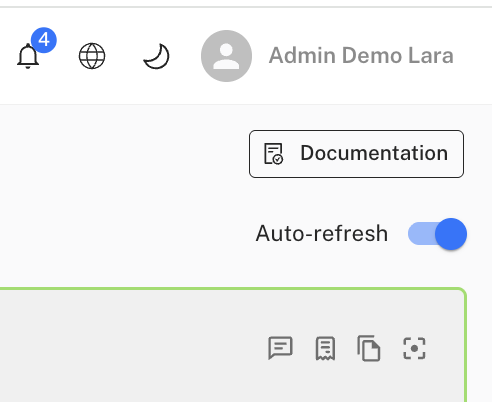
#### Automatic refresh of the requests list
In the requests list section, there is a switch **Auto-refresh**, which enables automatic page data refresh.
#### How it works
* The state of the switch (on or off) is saved **only in the current browser**
* When the page is reopened, the setting will remain as you previously set it
* When using another browser or device, the setting will be set to default
**Status change**
In the request details click this “Take into work” slider to assign the request to yourself.
To change the status, click the current status -> select an available one from the list. You can learn more about each status in the instruction below.
#### Request statuses
Each request in the system has its own status. From creation to completion of processing, the status changes automatically or manually depending on the situation.\
With each status change the customer receives a notification by email.
Below is a list of possible statuses:
* **New**\
The request has just been created by the customer. They must make a payment — either to the generated address or to the details that will arrive by email (for directions without automatic details generation). At this stage the customer can also cancel the request manually.
* **Paid by the customer**\
The system has received funds from the customer. The rate and amount are fixed and no longer change. The request shows fields “old amount” and “old rate.”
* **Marked as paid**\
The customer marks the request as paid themselves, typically for directions with manual details (without automatic address generation).
* **Awaiting confirmation**\
A status for cryptocurrency payments. The system sees an incoming transaction to the unique wallet of the request but is awaiting the required number of confirmations on the network. The transaction hash and the actual payment amount automatically appear in the request.
* **Under review**\
Used in cases where a problem occurred with the request (aside from AML checks or payout errors). For example, an open ticket on the request, the customer sent USDT instead of USDC, or additional data are required.
* **AML check**\
The request is under temporary fund freeze until a result is received from the exchange. It remains until a final decision — refund or crediting of funds.
* **Awaiting confirmation from the auto-payout module**\
Similar to the “Paid by the customer” status, but in the case when the request goes through automatic payouts. Funds are being prepared for sending via the auto-payment module; the system is awaiting final confirmation of the transaction.
* **Partially paid by the auto-payout module**\
Funds were sent automatically, but the full amount has not yet been credited to the customer. Used to track incomplete payouts.
* **Error from the auto-payout module**\
An automatic payout attempt failed. The reason may be payment system glitches or technical limitations, insufficient balance, or an incorrect recipient wallet.
* **Completed**\
Indicates that funds were successfully sent to the customer to their provided details.
* **Cancelled**\
Assigned manually when funds were returned to the customer.
* **Deleted**\
Applies to requests that were not paid by the customer in time.\
Also possible if the customer paid but the funds took too long to leave their wallet and the system failed to record the transaction in time.
* **Faulty**\
Used when the customer's details are incorrect or there is insufficient data for payment.\
This status is also assigned to requests if the payment is rejected due to limits, prohibition on receiving the currency, fraud warnings or other reasons.
**Comments on requests and receipts**
An important component of requests actively used by our clients — Comments and Receipts — can be found in the lower left corner of each request's details.
We can add a comment to each request where we can place any useful or convenient information about the request. This functionality is convenient for all administration roles. If there were difficulties with the request, a payout had to be made in another currency, to different details, or any other information that might be useful to your colleagues, they will not need to search for that information themselves or bother you to find out the details; they will be able to get that information through the corresponding window.
In addition, we have the ability to add a receipt to each request, and later click the “Send receipt” button so it is automatically sent to the customer at the Email specified in the request. Both functions, adding comments or receipts, are available for viewing only to us; customers do not see them.
**Search filters**
On the requests list page there is a “All filters” button in the top left corner. Clicking it opens a popup that allows searching requests by available parameters.
This is useful when a customer does not remember the request number but can provide other data, such as a transaction hash, Email, etc. In such a situation the request can be found by any of the available criteria listed in the example below
Available filters and their purpose:
1. Search by ID – allows finding a request by the system's internal identifier.
2. Search by public ID – search by the public identifier visible to the customer.
3. Creation date from – displays requests created starting from the specified date.
4. Creation date to – displays requests created up to and including the selected date.
5. Search by Telegram user – search requests by the customer's Telegram account.
6. Search by user Email – allows finding requests by the customer's email address.
7. Search by incoming details – search requests by the details from which the customer sent funds.
8. Search by outgoing details – search requests by the details to which funds were sent to the customer.
9. Search by currency from – displays requests with a specific incoming currency (for example, BTC, UAH).
10. Search by currency to – allows finding requests by the currency received by the customer.
11. Search by operator – search requests assigned to a specific operator.
12. Search by status – displays requests with the selected status (for example, new, completed, cancelled).
13. Search by referrer Email – allows finding requests created by users who came through a specific referrer.
14. Search for amount in USD greater than – search for requests where the transaction amount exceeds the specified value in US dollars.
15. Search by transaction hash – allows finding a request by the unique hash of a blockchain transaction.
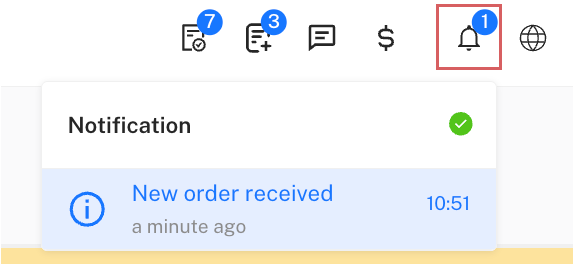
The request list does not update automatically; when a client creates a request the operator receives a toast message and an indicator on the bell icon. \
The bell icon shows a counter of unread requests and messages. Clicking the notification opens the requests page with an automatically applied filter by ID. \
In the requests list new and unread requests are highlighted in green.
### **Request lifecycle cycles**
#### **1. New requests that were not paid**
**Statuses:** New → (30/60 minutes – time you set yourself) → Deleted\
If the customer does not make a payment within the specified time — the request is automatically deleted.
#### **2. Requests for acceptance by a payment system (for example, Payoneer)**
**Option 1:**\
New → Marked by the customer as paid → Completed
* The customer creates a request; the rate is fixed.
* We send the customer the details.
* The customer makes the payment, sends confirmation, we review the receipt.
* After confirmation — the request is manually moved to “Completed.”
**Option 2:**\
New → Paid by the customer → Completed
* Difference: the new rate is fixed at the moment payment is confirmed.
**Option 3:**\
New → Under review → Completed
* If the payment does not appear for a long time, the request is moved to “Under review” until clarified.
#### **3. Requests where payment is “stuck” at the confirmation stage**
**Statuses:** New → Awaiting confirmation
* Under no circumstances should you move the request to “Marked as paid” yourself.
* If the process is stagnant for a long time, you can check the transaction status with the exchange.
#### **4. Semi-automatic/automatic requests**
**Statuses:**\
New → Awaiting confirmation → Paid by the customer → Awaiting confirmation from the auto-payout module → Completed
* Most operations are performed automatically.
* The final status is confirmed in the bot, on the exchange or wallet, after which it is automatically pulled into the admin panel.
#### **5. Regular requests (crypto → fiat)**
**Statuses:** New → Awaiting confirmation → Paid by the customer → Completed
* The rate is fixed at creation.
* After funds arrive to the balance, the request automatically moves to the status “Paid by the customer” and the rate for the request is finally fixed.
* Then the operator fulfills the request and manually moves it to “Completed.”
**6. “Problematic” requests**
**Option 1:** New → Awaiting confirmation → Paid by the customer → Faulty → Completed
* If problems arise with the payout (limits, rejections, etc.) — the request is moved to “Faulty.”
* After resolution — it is either completed or another option is agreed with the customer. **Option 2:** New → Awaiting confirmation → Paid by the customer → Faulty → Cancelled
* If funds cannot be paid even after repeated attempts — we return them to the customer, after which the request moves to “Cancelled.”
**7. Requests with AML checks**
**Option 1:** New → Awaiting confirmation → AML check → Cancelled
* If the transaction fails AML, the customer is refunded and the request is closed.
**Option 2:** New → Awaiting confirmation → AML check → Under review → Completed
* If the exchange allows fulfilling the request after clarifications — we make the payout at the new rate and the request completes as “Completed.”
**Option 3:** New → Awaiting confirmation → AML check → Cancelled
* If the customer does not agree to a payout at the new rate — a refund is made and the request moves to “Cancelled.”
#### **Useful tips**
* Always add an internal comment to the request when you take an important action.
* Clarify details with the customer via chat or email if additional details are required.
* In any case you can consult our support service.
* If you want to see a request status not provided by our functionality, you can always request support to add it; most of our platform's functionality is the result of years of customer experience and improvements made according to their requests.
* Remember that you can edit the descriptions of the texts sent to customers for each request status yourself in “Settings” - “Email notifications”.