# Menu header
Functionality **Layout builder** is used to configure the display of information blocks in **the header** and **the footer** of the site. It allows you to create a convenient navigation structure for users by forming headings with links to the required pages (for example: “About us”, “Rules”, “FAQ”, “Contacts”).
### **Main features**
1. **List of layouts**
* This section displays all created layouts with their names.
* Each layout can be deleted using the trash can icon.
2. **Layout structure**
* Each layout consists of **headings** (for example: “Information”, “Documents”, “Support”).
* You can attach a list of pages to a heading, which will be displayed as clickable links.
* This allows you to group information by topics and simplify the search for the needed page for the user.
3. **Working with blocks**\
In layout edit mode the following actions are available:
* **Add a new block** ("+ Add"). \
**Important**: By adding a menu item you add a web-displayed menu with a direct link; by adding a menu list you can add several pre-created static pages from the admin panel section ["Pages"](https://lara-script.gitbook.io/docs/ru/funkcional-admin-paneli/resursy/stranicy), and when hovering over the main one, a dropdown menu will appear with several related pages previously created and added to this menu.
* **Edit an existing block** (change the title, add/remove pages).
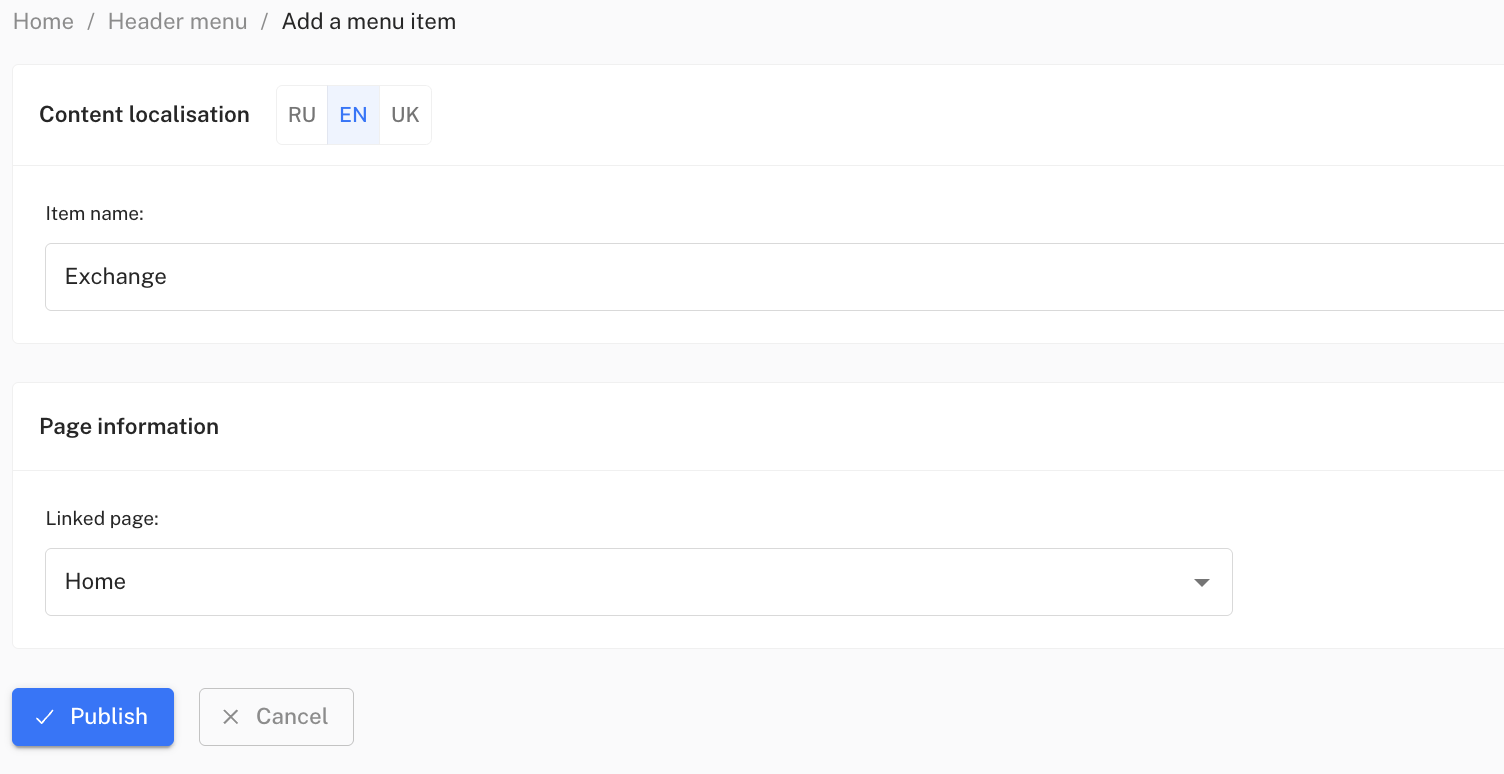
**Note**, if you are editing an item previously created as a "Menu item", it will not be editable in the same way as a "menu list", where you will be able to choose a list from dropdown sections \
Editing a menu item:
\
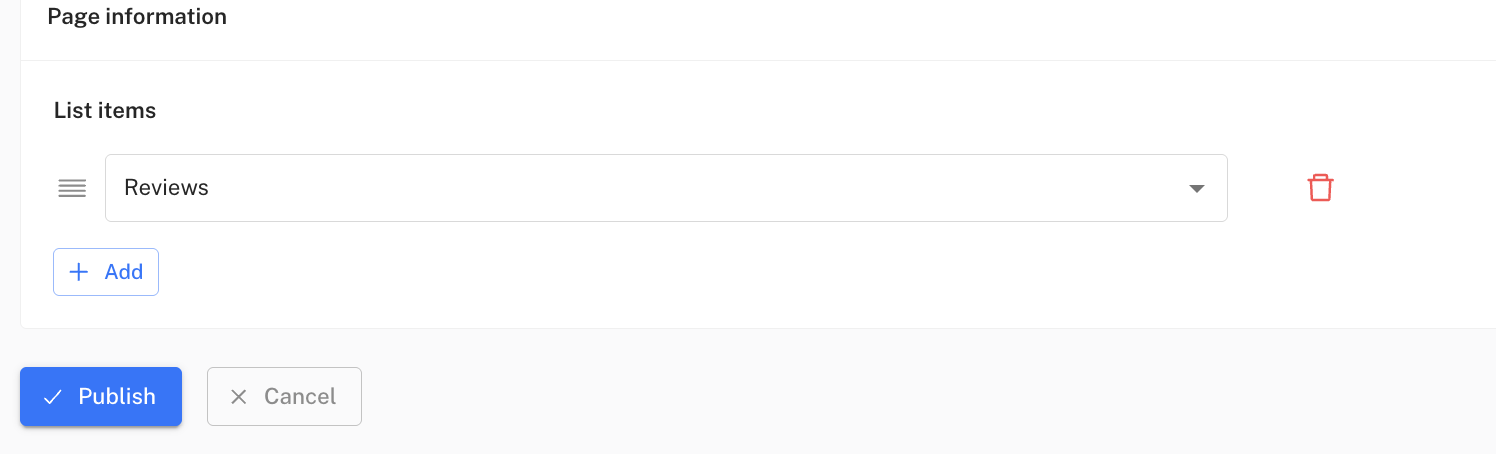
Editing a menu list will have characteristic dropdown menus and the ability to add/remove them:
\
You will edit it the same way you created the menu.
* **Move blocks** to change the order of their display in the footer or header.
* **Delete blocks**, that are no longer needed.
\
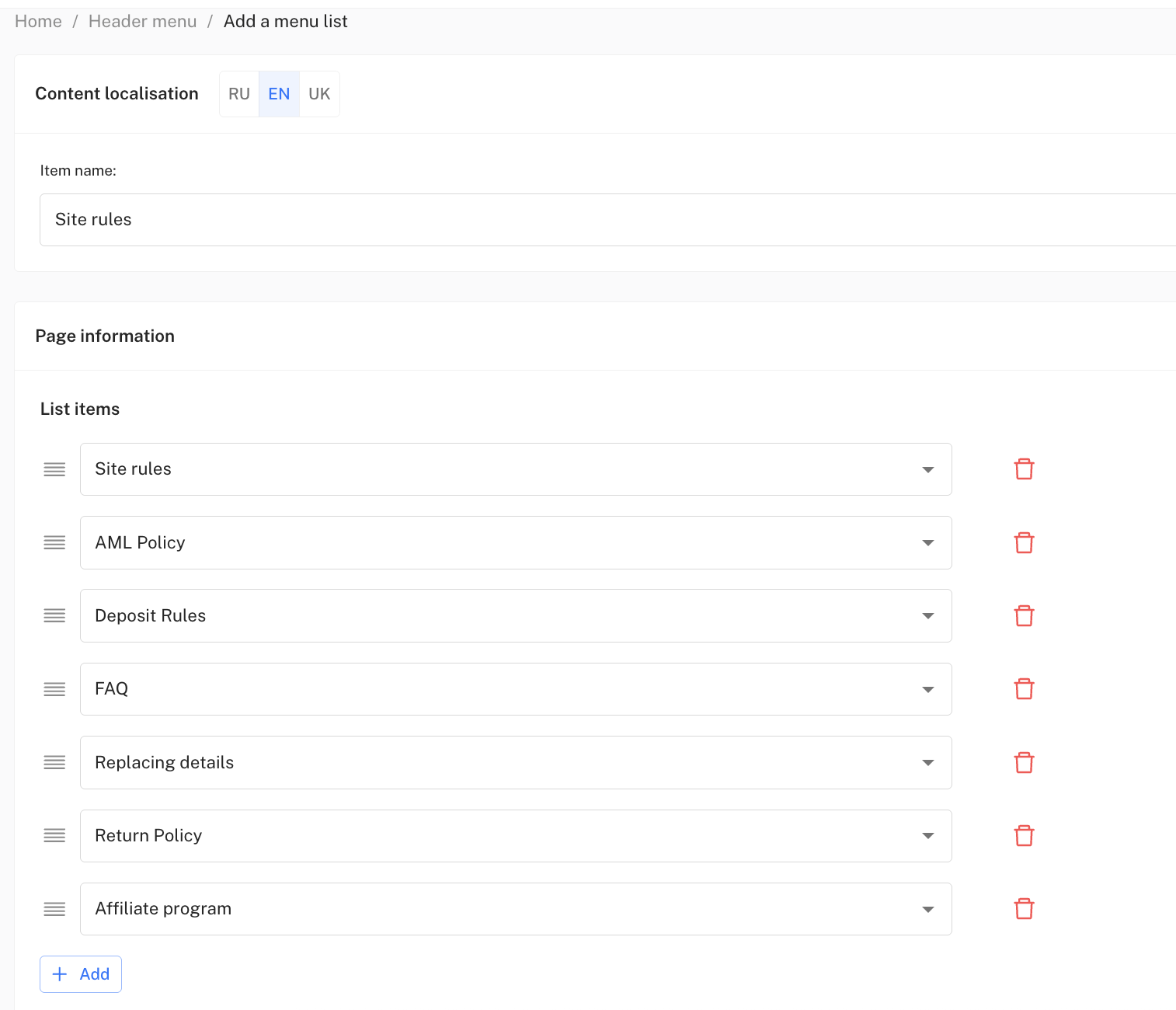
If you want to create a menu list, the Name of the item must be exactly how the main window will be displayed in the admin panel header, and when hovering over it a dropdown menu will appear with the pages already added and preconfigured; it should look roughly like this, and you can independently choose their number and content:
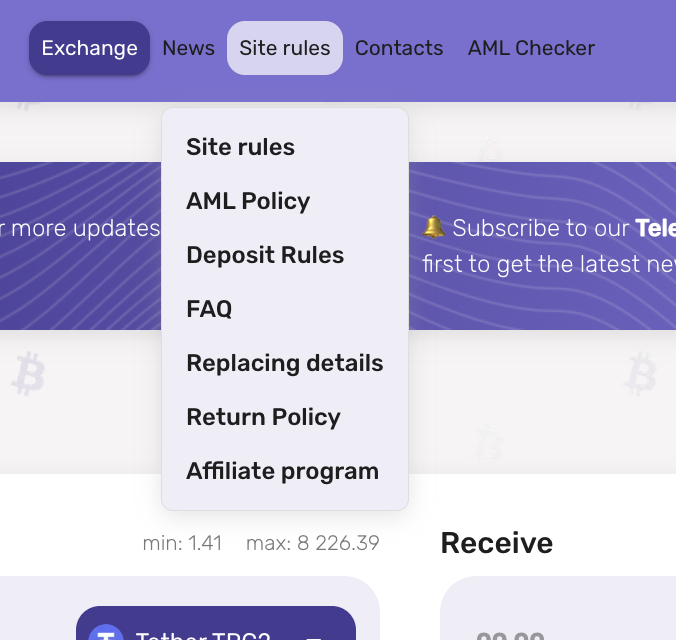
And after saving, on the web part of the site this dropdown menu will look roughly like the following, where each page is clickable and leads to one of them
1. **Saving and activation**
* After configuration you need to click the “Save” button.
* If the layout is active, changes will immediately appear on the site.
* You can prepare several variants in advance (for example: a standard header and a festive promo header) and quickly switch between them.
✅ **Example of use**:\
If you add **a menu list**, a layout is created in the header with the heading **“Information”**, under which links are placed to the pages *About us*, *Service rules*, *Privacy policy*, *Contacts*. Next to it you can add **a menu item** a separate block **“Help”** with a link to *FAQ*.